Brought To You By Emily Parks
Productivity Consultant at Organize For Success, LLC...
Helping You Make Every Minute Matter!


Showing posts with label paper. Show all posts

Friday, January 19, 2018

Organize Your Files to Quickly Find What's Needed

Each day, we are faced with an onslaught of information. Much of that information avalanche comes from email, and there are solutions specific to controlling your email instead of letting email control you. Yet, there is an equally pressing need to address the overwhelm from paper and electronic documents. Follow these steps for relief in accessing knowledge via paper and electronic sources.

- Limit what you retain. Whenever you have to dig through more files to find whats needed, it takes longer. Make friends with delete and discard, keeping only what is accurate, applicable, useful, bringing you joy as well as difficult to replicate or find online. Then, schedule time to maintain this system, continually evaluating what comes into your space while addressing your retention cycle so things are not kept longer than needed.

- Convert what paper you can to an electronic format. It is easier to find content needed in electronic form. Further, filling electronic storage space creates fewer pains and often takes longer to reach existing limits. To reach this goal, choose from physical scanners, like Doxie or Fujitsu, install the Scannable app on your iPhone or CamScanner app on your Android device and partner with scanning companies to help catchup on your backlog, like The File Depot or Shoeboxed, culling together in your preferred option.

- Control the funnel into your space. When left up to the person delivering paper to your office, each will be piled atop the last on your desk or bureau; however, once something gets stacked on top of something else, you no longer know what is below. Counter that situation by hanging an inbox (and, ideally, an outbox) near the door to your workspace, whether a Three by Three Wall Pocket, reisenthel Clear Wall Pockets, a Rustic Marche Wall Pocket, a Yamazaki Nest 2-Pocket Wall Organizer or something similar. Tools like an inbox and outbox empower you to address what's most important when it's convenient for you and separate those items from what is currently being handled atop your desk.

- Implement naming conventions. If you can mirror names between email mailboxes, paper files and electronic document folders, it will be easier to know what you have, put things where they belong and, then, recover what's needed quickly. There is no "right" or "wrong" verbiage for labeling, although I discourage using "miscellaneous" since that is non-descriptive; however, there is an art to creating a filing system... You want enough folders so everything has a home but not so many options that any one item could realistically be filed in more than one place. Balance carefully between generic and specific so each email, paper or electronic file has a clear destination that is easy to maintain. The worst scenario is to struggle in determining where something should be kept as it means you'll struggle even more when looking to retrieve it later.

How do you choose what papers and electronic files to keep? What system do you use for successfully retaining them? Or how do you struggle with your documents?

Monday, January 25, 2016

Organize Your Paper Files

Are your files bulging with too many papers in each? Is it hard to find what document you need as you have to dig through too many unnecessary pages? Are the actual folders falling apart due to all their contents? Do the labels fit what each file contains?

The same rule of "Keep only that which is accurate, applicable, useful or bringing you joy" that we discussed earlier for all the elements in your office is very applicable for what papers you retain in your file folders. Remove excess paperwork from your file folders. Is the information on that page still necessary for performing a task? Can it be found easily online when needed? If the old saying that "we use only 20% of the papers we keep" is true, how can we cut back on the other 80% so it's easier to find what we need?

If this seems a little too overwhelming, break this project into smaller pieces. Review only 10 files each day to determine what you really need, what can be scanned into an electronic form and what can be removed completely. Likewise, consider what should remain nearby in your workspace versus be moved to an alternative location. Maybe the contents need to be in a space you share with co-workers. Alternatively, maybe the contents need to be moved further away from you desk; keep in mind that the space closest to your desktop is prime real estate and should be reserved for items currently used frequently while less often referenced items need to be further out.

Once you have the contents of your files down to what you need, do a little homework... If what papers are being retained make the folder too thick, divide the contents into at least two different folders, continuing to group like with like. Don't overthink it, but do take it page by page through each file. If the title of the folder no longer describes what papers are in it, adjust how you label each folder to best reflect its contents. There is an art form in having enough file folder names that each paper to be retained has a home while not having so many folders that any paper could be filed in more than one place, but I know you can do it.

Invest some time in moving those piles of papers from the surface of your desk into action, active project or archive files, and you'll find less time wasted looking for what's needed, you'll be more comfortable inviting others into your workspace and you will be empowered to get more done in less time.

Are your paper files acting as another tool in your productivity toolbox? If not, which of these action items can you complete this week to better organize your folders?

Monday, October 6, 2014

Surviving The Information Avalanche

 The majority of us are on information overload. We are constantly inundated with emails, news, texts, articles, feeds, tweets, blogs, calls, reminders and much more, not only in our professional lives but our personal lives as well. Digital storage space is much less expensive than ever before. Regular folks, in addition to companies, are contributing online content, which has multiplied the amount of content being generated. Our tech tools do much more than ever before, and mobile professionals are “on call” for working 24/7. It can be extremely overwhelming!

To take control, it is important that we address these 5 different challenges:
  •        We must capture and cull together all the relevant bits of information.
  •        We must organize those contents, grouping like with like and, hopefully, indexing the details for later searching.
  •        We must make sure we have enough space to adequately store and manage the contents being retained, not worrying if we’ll go over imposed limits.
  •        We must address privacy concerns by verifying what we keep is stored safe from theft, loss or damage.
  •        We must plan for quickly locating what’s needed later so we see the contents in an understandable way, being able to share what’s needed.

In addressing the immense challenges of surviving today’s info avalanche, there are action items we can implement immediately. For busy professionals to wade through all the information with which we’re bombarded, the first step is to turn off all the pings and dings of our various notifications; this empowers us to be in control of when we handle information, not whoever is sending that information out in our direction. Then, it’s important for us to be very clear about our personal and professional goals so we’ll know upfront how we’d like to use whatever useful information we receive, which will allow for a much clearer focus in on what information is applicable, thereby blocking out what is really not needed. Such tweaks to how we address the info avalanche can make an immediate and noticeable difference in how we survive.

When evaluating the info avalanche and how we can best handle it, email is a place where we can get overwhelmed until it’s all a blur; however, there are tons of great techniques for clearing the clutter in our email. First, send fewer emails to get fewer emails back. Obviously, if you need something documented, you’ll need to stick with sending an email, and, if you need to send the information to multiple people at once, email is the best option; however, if a phone call will suffice, give that a try. Next, unsubscribe from eNewsletters you are not reading. While it only takes a second to hit the delete key, those seconds add up if you are continuing to delete the same eNewsletter regularly; instead, take a little extra time upfront to unsubscribe so you save the accumulating time of deleting with each receipt. On the other hand, consider culling those subscriptions you do want to keep receiving into a “roll-up” by using Unroll.me’s website or The Swizzle’s email tool. Third, master the art of creating reference folders within your email management tool. You can more quickly locate a message for later reference when you have enough folders that everything to be kept can have a home while you limit the number of fodders so nothing could be appropriate for more than one of those existing. Within your reference folders, utilize automated rules to sort emails into their appropriate homes, whether to highlight what needs time-sensitive attention or to cull items for reading when convenient for you. Finally and probably most importantly, shift your mentality related to email from “checking” your email to “processing” it so your Inbox is no longer a holding zone, you don’t repeat time and effort of reading any original message and what you’ll reply doesn’t weigh on you continually between receipt and finally responding. Tasks that take less than 5 minutes should be completed with the message asking for them to be done is initially received. Any task that will take longer than 5 minutes to do needs to be added to your running tasks list. Appointments should be moved to your calendar, retention items should be moved to your personal folders and anything not needed should be moved directly to Trash.

When processing and maintaining your email account, please remember the “delete” key can be your friend. There’s no need to hold onto whatever is no longer accurate, applicable, useful or bringing you joy. Likewise, there is a big difference between junk that you should never bring into your space to begin with and trash that you can delete after reviewing. Most importantly, though, when determining what to save, ignore or delete, consider what can be easily located online later. There’s no need to clutter your space with what you don’t need or can just as easily get online.

Further, even though much of the daily overwhelm comes from electronic, paper can be a problem, too. To clear the clutter with regards to paper, we must first acknowledge that it’s easier to find what’s needed in electronic form; therefore, convert what paper you can to electronic files. There are such powerful scanning options from Doxie, Fujitsu and Neat, but many folks simply take a photo of the paper to be converted to electronic using their phones so it’s important to keep in mind how many options can turn paper to electronic. Beyond that, as with email, consolidate what paper comes into your space via an Inbox, empowering you to address what’s most important when convenient for you. Create naming conventions to mirror between paper and electronic and, then, schedule time regularly to edit the contents of your retention files. When any piece of paper is no longer accurate, applicable, useful or bringing you joy, get it out of your space, whether via recycling or shredding. Finally, utilize a fireproof safe for those most important papers, especially what needs to be accessed quickly in the event you die or are incapacitated.

There are excellent tools currently available for our mobile devices to aid in easily storing what information we will need later without it turning into another form of clutter. Using MorningCoffee for Android or Firefox, Morning for iOS or Flipboard that works across the various platforms, you can determine which communication or news channels cross into your space. Then, you can more easily save what will be needed later into a “Read It Later” app, like Pocket, Instapaper and Readability. Likewise, for any blog or website that posts content in a stream, you can pull its RSS feed into an RSS Reader, like Feedly, FeedReader, NewsBlur, and RSSOwl. While Pinterest has been pigeon-holed into being just for planning DIY projects, pulling fashion ideas or planning your home renovation, Pinterest can be a great tool for storing the information facing us daily, allowing you to create an image board for any project or client. Alternatively, Twitter can be a great tool for storing the information onslaught we get with sweet Tweets, making them easier to locate again later. Lastly, lest we not forget my all-time favorite tool for storing information that we’ll need later without creating another form of clutter, I recommend a self-made database in Evernote, to which you can send emails so each is better retained for later. See which best meets your needs and enhances your toolbox.

Meanwhile, although there are tons of useful apps to boost your productivity and enable sharing information with your team, you don’t have to log into each individually each day; many of these tools talk to one another so you can get information from several of these tools by logging into just one app. You can cull together documents from various online file repositories with CloudCube on Android and Citrix ShareFile QuickEdit on iOS. Quip Business lets a team combine shared documents with messaging about related projects, all in one place. Further, both Catch App and Hojoki App merge data from multiple different apps for quicker response and easier understanding of all that’s happening. As your team grows and evolves, always be thinking about how tech tools can help you be more efficient.

Streamlining can be vital in clearing the clutter, and there are two other tools I’d like to bring to your attention to aid in your attempts at streamlining the info avalanche. First, although it’s important to have the right message in front of the right audience at the right time to grow your business, you can’t be everywhere at once, which makes a social media manager very valuable. Options include Buffer, Hootsuite, Postling, SocialOomph and Sprout, but find the one that best meets your unique needs and test it before committing. Second, since our brains are meant for thinking, not remembering, a Customer Relationship Manager helps remember the details of previous interactions as well as when each contact needs follow-up. I recommend looking at Infusionsoft, Insightly, NetVibes, Nimble and Zoho.

As many people claim that one is a lonely number, I’ve found it to be very powerful for boosting folks’ productivity. In my work with individuals and corporate teams, I’m continually reminded that each of us is just one person, not a work person and home person. With that in mind, these are 5 tools I’ve found to be most helpful when you use just one for all segments of your life:
  •        One calendar for both work and personal items encourages you to not double-book yourself and leads to fewer items falling through the cracks.
  •        One running tasks list that funnels into one daily to-do list for each day means you more easily know what needs to be done at each moment and allows you to better focus on the 3 to 5 action items most important for your current day.
  •        One “data dump” that enables your brain to think, rather than remember details, allows you to search just one location for all your notes, research and references.
  •        One address book for both work and personal contacts empowers you to better maintain contacts’ most current information.
  •        One weekly strategy session that is supported with one wrap-up each day allows you to have a game plan for attacking what absolutely must be done each week as well as those important items that are not urgent.

On a related note, though I do believe work / life integration is replacing the impractical concept of work / life balance, I also feel it is vital for busy professionals to set limits on our availability to customers, vendors and other team members. There’s no right or wrong answer about how accessible you should be, but it’s important to set guidelines based on what works best for you and the unique needs of your business. Tools and software can mesh with the way you need to communicate day to day, but it’s also smart to step away for a while from time to time. Whether you are an introvert or an extrovert, it’s important to incorporate downtime into your routine and to disengage from electronic communications by building some much-needed quiet into your day. This can be for reflection, for progressing towards goals, for re-energizing or whatever meets your needs, but its value is beyond measure.

Even though it might seem impossible, you can certainly survive the information avalanche in today’s society, but you must be focused in your efforts and fully utilize the available tools to help you. Click here to view a recent interview of me addressing this topic with Julie Coraccio of Reawaken Your Brilliance, and think about how these tools and techniques can apply to your specific needs. Don’t hesitate to ask for help and keep evolving as the available tech tools continue to develop around you do.

What tools and techniques do you employ in surviving the info avalanche?


Monday, September 8, 2014

Eliminate Distractions to Organize for Greater Success

Do you find your thoughts drifting when you need to focus on important tasks? Do you get pulled in a hundred directions when you are time-crunched to finish a project? Are there constantly different people, places and things pulling your attention in various directions? It might be time to evaluate your tactics for eliminating distractions and come up with new solutions.

While there are many tactics for eliminating distractions that have withstood the test of time, here are a dozen strategies I have found to provide the greatest success:

- If you are working within a specific program on your computer, like Microsoft WordQuickBooksMailChimp or your Customer Relationship Manager, open that particular program up to full screen so you have less visible distractions from other programs.

- Turn off the pings and dings that notify you of new social media shares or incoming email messages, empowering you to be in control of when information is handled, not whoever is sending that information to you.

- Utilize Leechblock on FirefoxStayFocused on ChromeSelfControl on Mac or Keep Me Out across various different Internet browsers, each designed to block you from specific websites for a specific amount of time or limit the amount of time you are allowed on specified sites each day.

- Create a specific game plan for your day, giving you a path to stay focused and on task. Likewise, while the specified times vary from person to person, schedule your most important tasks for the times in your day that you are at peak performance and have the most energy.

- Whether you use a pen and paper or an electronic tool, allow your brain to think, rather than remember, by getting those many different tidbits that must be remembered out of your head. 

 - Employ RescueTime to determine where you might be wasting time and, then, trim the fat.

- Schedule clearly defined “office hours” for when you’ll be available to distracting co-workers, team members and partners who need you; during other times that you have designated for focusing on important tasks at hand, consider wearing headphones as a deterrent to guests, explaining that “I’m working hard now” and encouraging them to come back later. Moreover, when times are exceptionally crazed, some consider putting caution tape across their office doorways as the ultimate deterrent for those hoping to stop by for a chat.

- Learn to say no to drop-in visitors; alternatively, when you can’t say “no” or “not right now”, utilize a timer to create boundaries for how long the conversation can last.

- Group “like with like” for activities, like processing emails, returning phone calls and checking for updates from your team members. With batching, you’ll power through these tasks like a champ!

- When scheduling appointments and meetings, be sure to keep efforts focused by setting an end time along with a start time, empowering you with a set limit for how long to proceed.

- Keep the tools you need most frequently and / or most urgently closest to where you work.

- Utilize breaks strategically. As a growing body of evidence shows, “taking regular breaks from mental tasks improves productivity and creativity… and that skipping breaks can lead to stress and exhaustion.” Ideally, you focus intently on work for 50 minutes, followed by a 10-minute break, and, then, repeat to get through your super productive day. If not so frequently, consider taking a break every 2 hours; go for a walk or eat a snack to focus better.

With what distractions do you struggle most? What tools and tactics have you found to be most successful in eliminating unnecessary distractions?

Wednesday, April 9, 2014

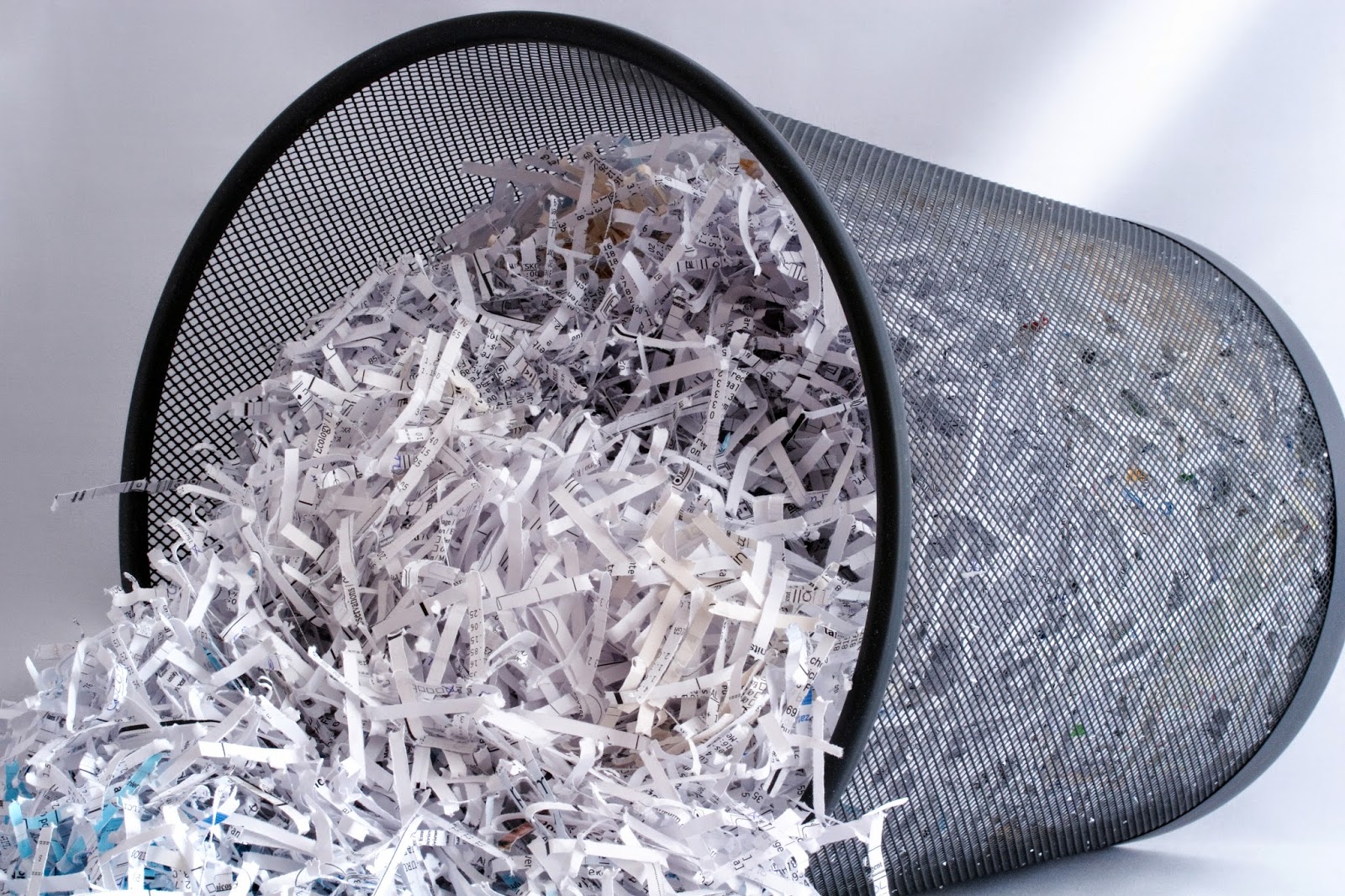
'Tis The Season to Shred, Shred, Shred

To Shred Or Not To Shred?
... That is the question
 Ah, yes... April 15th is just around the corner, and, with the deadline to file your 2013 tax return quickly approaching, it is a perfect time to purge outdated paper from your filing system. While paperLESS is possible, our world doesn't accommodate the concept of paperFREE, making it all the more important to shred papers discarded with confidential information, and local organizations make it easier than ever to shred what needs to be shredded with several free events coming up (see list of options below or on this site). Yet, with all the different advice available, it is difficult to know what can be recycled versus needing to be shredded. There are many different opinions about what to keep for how long, and the following is what I have found most helpful for my clients. VERY IMPORTANT... I recommend checking with your accountant about items that should be kept for the long-run as well as the BBB's Records Retention Schedule; however, here's a general reference list to get your sorting and purging started.

What to keep permanently, protected from fire and flood:
- Annual tax returns (however, tax-related receipts and bank statements can often be shredded after 7 years... Please verify your specific circumstances with your accountant.)
- Audit reports
- Business licenses
- Year-end summaries from financial service companies
- Stock and bond certificates; investment trade confirmations
- Deeds of property, auto titles and most recent documentation for insurance policies, especially related to pending claims
- Real estate and residence records, including those of paid mortgages and transfer / sale of property
- Health records / medical test results, wills, trusts, powers of attorney and estate-related documents
- Birth certificates as well as adoption and custody records
- Social Security cards and Social Security annual statements
- Current passports
- High school and college diplomas
- Military service information, including discharge papers
- Appraisals for jewelry, artwork, antiques, etc that you still own
- Marriage licenses
- Legal paperwork related to any divorces
- Pensions / retirement plan records as long as they're current
- Death certificates

Documents to keep for terms related to life events:
- Current homes' improvement and maintenance records until the homes are sold
- Receipts for major purchases while you own the appliance, furniture, electronics, jewelry, etc
- Current automobiles' maintenance and added accessories records until vehicles are sold
- Pet ownership and care records until taxes are filed for year when no longer part of your family

Documents to convert into electronic, shredding originals:
- Education records
- Current copy of your resume
- Employment records, including performance evaluations
- Copies of important work projects and volunteer records

What to shred and, as needed, related timetables:
- Any unwanted paper that contains your social security number
- Pre-approved credit card offers immediately upon receipt
- Expired credit cards and identification cards, like driver's licenses and student IDs
- Old bills unrelated to taxes or past time needed for tax records
- Out-of-date account statements
- Paycheck stubs after reconciled with W-2 or 1099 forms
- Brokerage and mutual fund statements after they've been reconciled at year-end
- Records of selling houses or stocks and annual investment statements once no longer needed for tax records
- Tax-related cancelled checks, W-2s, 1099s and receipts for tax-deductible expenses after 7 years
- Records of satisfied loans after 7 years
- ATM receipts, bank deposit slips and receipts for credit card charges after cleared on statements
- Receipts for minor purchases that are not deductible for taxes (like your normal groceries) and for items you no longer own or are no longer eligible for returns
- Property tax records once any related disputes are resolved
- Addresses of prior residences
- Outdated credit reports and credit scores
- Completed travel itineraries
- Old report cards
- Luggage tags that you are no longer using
- Anything no longer needed that has a copy of your signature
- Anything that includes your birthdate and / or prescription information alongside your name

Again, it's important to contact your accountant before shredding anything, just to verify any special circumstances unique to your situation. It's better to be cautious with things like this.

Plus, there's good news: With this being "shredding season", you are in luck. There are plenty of free events occurring soon for you to shred what documents you need to shred. While events across the state of North Carolina can be found online here, below is a list of the events local to the Triangle of NC area:
- Saturday, April 12th at 73 Hunter St, Apex --- 9am - noon (click here for details; limit of 3 small bags or boxes per person)
- Saturday, April 19th at Marrow-Pitt Ace Hardware, 1713 N. Main St, Tarboro --- 10am - 1pm
- Thursday, April 24th at University Mall, 201 S. Estes Dr, Chapel Hill --- 10am - 2pm (limit of 5 boxes per person)
- Saturday, April 26th at Oak Park Shopping Center, 6001 Glenwood Ave, Raleigh --- 8am - noon (limit of 3 boxes or bags per person)
- Saturday, April 26th at Hampton Pointe Recycling drop-off site, 625 Hampton Pointe Blvd, Hillsborough (behind Home Depot) --- 10am - 2pm (limit of 5 boxes per person)
- Saturday, May 3rd at Duke University Federal Credit Union, 2200 W. Main St --- 9am - 1pm
- Saturday, May 17th at Roxboro Savings Bank, 313 S. Main St, Roxboro --- 8am - 11am
- Saturday, May 17th at Coastal Federal Credit Union, 1000 St Albans Dr, Raleigh --- 8am - 12:30pm (click here for details; limit of 3 boxes or bags of documents to be shredded as well as up to 5 electronic devices to be recycled)
- Saturday, May 17th at Lafayette Village in front of Executive Office Suites, 8480 Honeycutt Rd, Raleigh --- 8am - 12:30pm (limit of 3 boxes or bags of documents to be shredded as well as up to 5 electronic devices to be recycled)

If you are unable to make any of the aforementioned events, no problem! Many businesses offer shredding services, like ProShred, Apex Shredding, OfficeMax, A Shred Ahead, Phoenix Resources Recycling and Iron Mountain. No matter which direction you take, though, please keep your confidential information safe, particularly since identity theft is such a growing issue for us all. How do you determine what to shred and do you shred in-house or with a vendor partner? If you take your documents somewhere to be shredded, which option do YOU prefer?

Tuesday, July 16, 2013

Back-To-School Helps Stock Your Office

Aah... It's that wonderful time of year when newspapers & TV ads start being flooded by back-to-school specials while inserts tout "huge savings" on office supplies. Although we're still about two and a half weeks away from North Carolina's annual tax-free weekend, during this ritual of back-to-school shopping, a bouquet of freshly sharpened pencils could easily replace roses, carnations or tulips, and those of us in the business of organizing workspaces start to drool over great gadgets & gizmos that'll increase your efficiency with incredible savings. It's no coincidence I just wrapped up a public presentation of "Go From 'Where'd I Put That?' to 'Here's What I Need' In No Time Flat", where I was able to utilize props to represent many of those fabulous office supplies that help to quickly locate what you need when you need it. These days, there are so many fantastic options to equip your workspace!


When addressing your need for a functional filing system, the list of necessary office supplies will often start with a DYMO LetraTAG Labelmaker, which enables a mobile solution for easily adding labels to each file folder. Speaking of file folders, I recommend 1/3-cut file folders that are a darker color on the outside and a lighter color on the inside. Color drives behavior so having a task that you don't like too much in a color that you do like a bunch will make that particular task a lot less unbearable; then, having the inside be ligher than the outside will increase the odds that the piece of paper you are attempting to file actually ends up inside the file folder you had envisioned as its destination. As you start to assign homes to each item that must be filed, start with big categories; assign one color AND one tab position to each big category, trying to keep each file folder label general enough that you don't have too many folders but specific enough to provide a home for each item to be filed. For example, all far-left-tab, green folders might be for FINANCES while those individual folders include FINANCES - Budget as well as FINANCES - Reimbursements. Likewise, all middle-tab, yellow folders might be for CLIENTS while those individual folders might be CLIENTS - John Doe as well as CLIENTS - Jane Smith. What naming convention do you use for your files?

Meanwhile, as you continue taking advantage of back-to-school savings by stocking your office supplies, please keep in mind that square or rectangular boxes, baskets and bins provide excellent options for containing related, loose items, including accessories for your tech tools, but you may also want to consider Cocoon's GRID-IT accessory organizer. In addition, clipboards provide an option for client forms or event-related checklists, and document sleeves can help organize meeting agendas, travel documents and reference items, including instructions for company-wide tools or specifics for how you are able to use your business' logo.

Above all else, though, make sure to add an Inbox on or near the entry to your workspace. Giving those individuals bringing items to you a place in which those items can be placed will empower you with control over your workspace, enabling you to address each of those items when appropriate and minimizing distractions from the important work on which you are already working.

What tools do you have in your office that assist in quickly finding what need when you need it, knowing what you should be doing at any given time and getting more done in less time? Please share in the comments below.

Wednesday, April 20, 2011

It's the Official "Organize Your Files Week"... Let's Celebrate!

We're in the third week of April, known as Organize Your Files Week, and it's a great time for this project, especially since Tax Day has passed, you've filed your tax return (or an extension) and you may have moved last year's financial documents.

Step One... Determine what needs to be kept for how long. Although a quick Internet search of "record retention" or "what to keep for how long in office" produces a wide variety of websites to help, it is always advised to check with your accountant for current requirements, too. A little bit of homework can go a long way for making the purging and sorting process much easier.

Step Two... Purge what doesn't need to be kept. My clients like using separate bins for TO KEEP, TO RECYCLE, TO SHRED and TO OTHERS when working through the purging process, but the particular categories you use would be unique to your specific needs. As you review each item, determine what's the worst possible result if you get rid of it; then, determine if you can replace it should the need arise.

Step Three... Sort items from the TO KEEP bin into categories. Group like with like into appropriate yet general categories that will aid in correctly labeling contents to remain in your space. You want to have enough files to contain all items that will remain, but you don't want to have too many files. If you have to wonder in which file a document should be added when filing that document, chances are good you'll wonder about the same thing when going to retrieve that document, which goes back to the need for limiting the number of files as available options when originally creating those file folder options.

Step Four... Color-code your system. Color is fantastic, and creating appropriate yet general categories limits the number that you use, allowing you to assign a different color to each category. File folders now come in such fabulous colors, including ones that are lighter inside than out so you know for certain when you are putting papers inside the file rather than in between files in the same drawer. Furthermore, colors drive action: you can see at a glance to which topic the file is related and a topic you dislike in a file that's your favorite color is less likely to be avoided.

Step Five... Assign a "home" to each category's items. Make sure to account for what you already have as well as what will be added. Then, when creating sub-categories, utilize the same tab position. For example, for the TAXES category, you may use the same, far-left tab position for TAXES 2010, TAXES 2009, etc. For the THINGS OWNED category, you may use middle tabbed files for STOCKS, BOAT, AUTOMOBILE, HOUSE, INSURED JEWELS, etc.

The goal is to know where to quickly locate what is needed when you need it... Can you put your hands on any piece of paper in 30 seconds or less when you determine that you need it? What paper management tactics do you use for your file drawers, and what's working best? Do you mirror those tactics for your electronic files? Please share in the Comments below.

Wednesday, April 6, 2011

Using One Address Book to Organize for Success

For contacts' names, phone numbers, emails and snail mail addresses as well as any notes related to that connection, keeping everyone's information centralized within one system makes it easier to keep contacts' data up-to-date and to access those details quickly whenever they are needed. However, how do you make an address book really operate as a tool to encourage your great success? Read on for tips to best utilize your address book...

1. Use what works for you. Test different options to see if your personality and specific needs mesh best with a paper or electronic option. With smartphones that sync with cloud technology as well as small paper options, either can be as mobile as needed to update contacts' information as you are out and about, but there is no "right" or "wrong" option; just select whichever option is best for you.

2. Be clear and honest with yourself about what you consider a "contact" you'd like in your address book. This would preferably be someone with whom you plan to interact regularly or with whom you'll do business... Not everyone from whom you collect a business card will qualify as a contact to go in your address book. However, since you still want access to the contact info for those that do not make the cut, I recommend scanning their business cards into your computer with NeatDesk and, then, uploading those scans into a "Networking" notebook in your Evernote account, allowing you to easily search for their information should it be needed down the road.

3. Update the information for those contacts in your address book regularly, especially as the details of their information change. The most useless tool is one with out-of-date data, like the saying of "garbage in leads to garbage out". Therefore, it is vital to be proactive and stay up-to-date. At least once each quarter, purge contacts you no longer want in your address book, especially if there's no longer a valid reason for them to be there, and, then, review the accuracy of remaining contacts' information.

4. Know upfront what is your goal for using an address book. Choose whether you want to simply manage contacts and their information OR if you want a Customer Relationship Management tool that can add in history of communications or retail trade-cycle management functionality. Do you want a record of interactions you've had or projects that you have worked on together? Do you need to schedule follow-up with this person? If you are fully aware of your goal, you can better use your selected address book tool for achieving it.

5. Utilize all the bells & whistles that come with your address book. Some address book options allow you to connect each contact's record with his / her social media profiles, which is a great way to see what important events might be occurring in that person's life. Some address book options allow you to print labels, which is a great way to alert clients and business partners about important happenings for your company or in your life. Yet, it is very important that you do not get distracted by all the current bells & whistles... Your address book is a tool, and successful use of this tool depends on keeping that in mind whenever you're using it.

What techniques do you use to maximize your address book's effectiveness? Please share in the Comments section below.

Tuesday, March 29, 2011

Using One To-Do List to Organize for Success

Are you jotting down reminders on multiple sheets of paper, in various notebooks or via sticky notes posted all around your office? If so, how many of those action items are actually getting completed?!? Keeping all your to-do items in one place makes it more likely they will each get completed and aids in prioritizing. However, how do you make a to-do list really operate as a tool to encourage your great success? How do you compile your action items to ensure all of them get done? Read on for tips to best utilize your task management solution...

1. Use what works for you. Test different options to see if your personality and specific needs mesh best with a paper or electronic option, keeping in mind that electronic options allow for reminders while some people remember better what they write down on paper. With smartphones that sync with cloud technology as well as small notebook options, either can be as mobile as needed, but there is no "right" or "wrong" option; just select whichever option is best for you.

2. Remember that it's okay to say "no". When someone asks you to do something, ask yourself "Is this task important? Does this task move me forward in achieving my goals? Is there someone else that should be doing this instead?" Be strategic about tasks you complete versus tasks you decline or delegate, and know that saying "no" can be a very powerful tool in your arsenal.

3. Do not depend on your mind to remember all tasks. Keep one tool (whether smartphone for your electronic option or small notebook for your paper option) with you at all times to continually add tasks as they arise. This "data dump" becomes your master to-do list, from which you pull a daily to-do list at the end of each day as you plan for the following day's activities.

4. Delegate. To get more done, find all the tasks on your to-do list that can easily be accomplished by someone else and, then, delegate those tasks to that person. Sharing tasks empowers the other individual AND opens time in your schedule to complete the tasks that can be done by only you.

5. Delete. Cross non-critical items off your to-do list so they don't nag on you or distract you from what really must get done... Focus on what remains, and relish in how good it feels to remove items from your to-do list.

What techniques do you use to maximize your to-do list's effectiveness? Please share in the Comments section below.

Wednesday, March 16, 2011

Using One Calendar to Organize for Success

Whether it's paper or electronic, a single solution enables tracking all commitments (personal & professional) in one place, making it less likely that appointments will be forgotten or that you will double-book. However, how do you make a calendar really operate as a tool to encourage your great success? Here are tips to best utilize a calendar:

1. Use what works for you. Test options to see if your personality meshes best with daily, weekly or monthly and whether paper or electronic is best for you. Find more about the process at http://bit.ly/fkOMOO.
  • Electronic calendars give you the option of setting alerts for upcoming events, which is ideal if you tend to forget birthdays, anniversaries or leaving for meetings and appointments. Look for repeat features that let you input daily, weekly, monthly or annual data only once.
  • Paper calendars often allow for more easily viewing the entire month at one glance, and the fact that you can write in whatever size you choose enables you to decide how much information fits within each date's box.
2. Color-code your calendar. To have one calendar tool for all facets of your life, use different colors for each (work vs family vs friends vs fitness vs self). Or use a different color for each project being completed, role you fill, person for whom you are responsible or different area of responsibility within your job. Visual cues, like colors, are great for driving action, particularly so you can tell what needs to be done by simply glancing at your calendar solution.

3. Include all pertinent details for each entry. When adding an appointment to your calendar tool, insert the phone number next to the name of the person you are meeting so, if you're running late, you can easily call. Plus, make sure to include the who, what, when, where and why beside each appointment being scheduled on your calendar.

4. Track to-do items amidst appointments. A calendar solution can be so much more than just a place to track appointments. To use your tool most effectively, assign a "when" for each "what" on your to-do list. I have yet to find a "someday" on any calendar, but I have seen how tasks with times scheduled for getting done are completed more regularly.

5. Always expect the unexpected. If you know precisely how long something should take, schedule it in your calendar with a 15-minute or greater buffer. You never know when traffic or another hurdle will delay your plans so approach proactively.

What techniques do you use to maximize your calendar's effectiveness? Please share in the Comments section below.

Monday, February 14, 2011

How Do You Keep Your Computer Clutter-Free?

In past blog posts, we've discussed overflowing paper files and overwhelming email inboxes, but what about your computer's electronic files? Whether you use a PC or Mac, does your computer's electronic clutter make it difficult to quickly find what you need when you need it? Do you waste valuable time searching for documents and / or replacing those documents you cannot locate? In honor of today's Clean Out Your Computer Day, here are some practical organizing tips to start tackling this project:

1. Automate your computer updates and virus scans. Then, schedule time weekly on your calendar to delete any temporary files that have not been touched in more than that week. Particularly for PC users, run a disk cleanup weekly and a disk defragment every-other-week.

2. Be vigilant in removing documents that are not used or can be easily found online. With what remains, remove visual clutter by funneling desktop icons into just two folders: Documents and Software.

3. Mirror the names of your paper file folders when creating or maintaining your electronic files. To easily find filed items, start the name with the general category and follow that with the specifics. For example, file names could include INSURANCE - AUTO, INSURANCE - HEALTH and INSURANCE - HOME / OFFICE.

4. Be certain to back-up data regularly... If you have a system for remembering to back-up regularly via flash drive, disk or external hard-drive, those are viable options; however, I highly recommend a cloud solution that will automatically back-up your data in a "set it and forget it" manner. I prefer Mozy, but Carbonite is an excellent alternative, too.

5. Speaking of "the cloud", remember that you don't have to keep all electronic information saved on your computer's hard drive... Evernote is an absolutely fabulous way to capture anything (ideas, articles, to-do lists, shopping suggestions, photos, business cards and so much more) in an organized manner to be accessed anywhere. There are Evernote tools for your computer, smart phone or web browser, and they all enable finding whatever you need very quickly, whether that be through keywords, tags, printed text or, even, handwritten text inside uploaded images. For details, visit http://www.evernote.com today.

What will you do today to clean out your computer? What are your current processes for keeping your computer cleaned out? With which portions of your computer do you struggle most to keep clutter-free?