Brought To You By Emily Parks
Productivity Consultant at Organize For Success, LLC...
Helping You Make Every Minute Matter!


Showing posts with label knowledge management. Show all posts

Tuesday, March 31, 2015

Evernote Can Boost Your Collaboration

Collaborate Better With Evernote
Although Evernote provides an excellent catchall for what I need to reference or am using to complete my current projects, its usefulness goes well beyond containing content in a manner that makes it easy to find. My experience repeatedly shows that Evernote's greatest value comes from how it supports and empowers collaboration. Yes, sharing notes can aid my workflows, but sharing Notebooks, using Work Chat and pulling Context from my LinkedIn network or Notes of others in my Business' accounts can really boost my abilities.

For example, when I'm chairing a non-profit committee or serving on a Board of Directors, Evernote enables sharing more than any online file repository. If we were to use Dropbox or Google Drive, we would be limited to Word documents, Excel spreadsheets, PowerPoint presentations and the like; however, by sharing a Notebook in Evernote, we can share those same types of documents PLUS any content included in any of that Notebook's notes, like typed text, articles clipped from the Internet, photos of handwritten notes, audio and video files created right in the app itself, checklists and much more.

Likewise, when I'm traveling with others, Evernote enables sharing all sorts of information related to our upcoming trip. This includes a packing list of who is bringing what, our reservations for flights, airport shuttle or rental car and hotel rooms, our expected itineraries, things we want to do while visiting this destination and contact information for places we will visit or folks we will be seeing. Avoid email madness by simply sharing a Notebook.

Whenever someone with a Premium or Business account shares a Notebook with others, they can choose what access the invitee would have for that content to be shared. If the access provided is "can edit" or "can edit and invite", voila... Collaboration is empowered! Publicity teams can share and continually update a list of press contacts. A creative services team can save design inspiration while going back and forth on production of new campaigns. Corporations can allow all employees to easily access the most up-to-date version of that company's employee handbook or any forms related to human resources, like requests for time off.

I like using Notebooks shared in Evernote for group meetings. Via that Notebook, I can seamlessly share with all attending any related information: documents to be reviewed beforehand, meeting agenda, summary notes or minutes, who is responsible for what follow-up to be completed by when and anything requested during the meeting to be shared with others. In addition, as long as I'm on the Premium or Business version, others can add requests to the agenda or make edits to the minutes without emailing back and forth with others or awaiting someone else doing it. Click here for a video of me discussing how I use this aspect of Evernote.

You can always change permissions or stop sharing, ensuring you aren't unnecessarily constrained by Evernote. Yet, when you can share what's needed for moving forward on the project at hand without clogging up someone's email inbox, there is definitely value. When folks can have at their fingertips what is needed for getting things done, there is value.

How do YOU use Evernote? In which of your uses have you found Evernote's greatest value?

Friday, March 27, 2015

Tactics to Quickly Find What's Needed in Evernote

Whether you are seeking your own words, images, documents, checklists or content culled from elsewhere, Evernote's powerful search and discovery features make it easy to quickly find what you need when you need it, no matter from where you are seeking it. How would you like to stop wasting time, searching for what you "know" you have?!? Well, look no further!

Anytime you enter text in the Search field of your Evernote account, it searches all the content in your notes' titles, your notes' bodies, notebook names, tags you've used and content in your URLs for notes in your database, including text in photos that has been processed by Optical Character Recognition; plus, in Business or Premium, you can search text inside attachments, PDFs and spreadsheets. Yet, Evernote's search capabilities go well beyond a simple keyword search option.


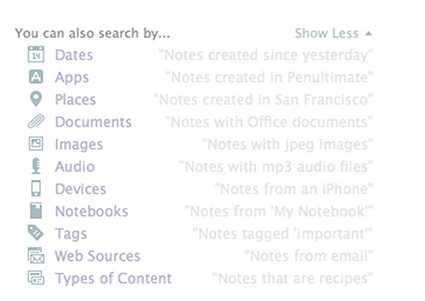
With Descriptive Search, those using Evernote on a Mac can use plain language to describe what is being sought. You can search by location you visited on a specific trip, by dates you know you were doing whatever is being sought, by type of device you used to upload the information and more. Click here for a video overview of the Descriptive Search functionality.

Still, within that same search field, Evernote offers codes or equations you can use to focus in on certain aspects of the content for which you are searching. Here are some examples:
  • created:20150115 finds notes created on January 15, 2015
  • updated:20150327 finds notes updated on March 27, 2015
  • intitle:"coffee" finds notes with coffee in their titles
  • resource:image/* searches for notes that include images
  • notebook:"Receipts" finds notes in the Receipts notebook
  • tag:"Mobile" finds notes tagged with Mobile
  • any:"New York" searches for notes that have New OR York in them, unlike how typing New York on its own in the search box will pull up notes that have both New AND York in them
  • todo:true finds notes with a checkbox that is checked
  • todo:false finds notes that contain an unchecked checkbox
  • todo:* searches for all notes that contain any checkbox at all
  • source:mobile finds all notes created on a mobile device

Many of my clients extend the power of Evernote for quickly finding what's needed via the Atlas and Shortcuts. By clicking the word Atlas in your Evernote account, you see a map and can locate any note based off the location in which it was added to your database. Likewise, under word Shortcut, you can access any note or notebook you've added to the shortlist of which content you access most frequently and, therefore, want most easily accessible. It is quite simple to add content to your Shortcuts by simply dragging a note or notebook atop the Shortcuts name and, then, dropping it into that section; however, I highly encourage you to keep your list of Shortcut content short so it doesn't become cumbersome to scroll through these options.

Above all else, though, I think Evernote's recent additions of Context and Augmented Intelligence empower me to most easily find whatever I might need quickly. If you are using Evernote Premium, it is with Context that you are given related notes from you own account, people from your LinkedIn network related to that note's content and relevant content for free from trusted news sources, like The Wall Street Journal, Fast Company, Inc Magazine, Pando Daily, CrunchBase, TechCrunch, Forbes and Lifehacker. On Evernote Business, the Context functionality adds related notes from team members, others in your company who many know more about the topic at hand and content from Factiva's web content. Context dramatically extends my ability to get work done within my Evernote workspace. Further, via Augmented Intelligence, my Evernote database is incorporating what it learns from how I use the tool to better provide me with what content it determines would be helpful, and it is quite fascinating. For example, if I've been adding content to specific notebooks, those notebooks will appear atop my list of notebook options when adding new notes on the go.

How do you find what you need quickly in your Evernote database? Do you utilize any of these tactics or are there any you'll be incorporating in your daily work habits?

Friday, March 20, 2015

Evernote's Tools Empower Your Paperless Productivity

While we do not live in a society that fully supports efforts to go paperFREE, there are plenty of strong solutions to better enable and support a paperLESS existence. Among those options, I really like what is provided by Evernote's suite of productivity apps. Today, let's take a deeper look at what's available.

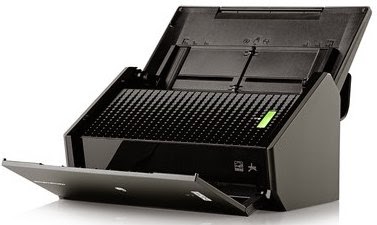
If you like using a physical scanner, Fujitsu ScanSnap document scanners offer one-button ease of
use, no matter whether you're scanning from the road or your desktop. Now, thanks to the partnership that Fujitsu has developed with Evernote, pushing your scan button on a Fujitsu ScanSnap device makes your documents instantly available and searchable across all your computers and mobile devices. Use any Fujitsu ScanSnap device to scan directly into Evernote, choosing your destination notebook; Evernote synchronizes your content across devices and updates your content for image recognition so you can quickly find what you need from anywhere.

Alternatively, if you prefer the simplicity of an app, Scannable captures the paper in your life quickly, easily and clearly, transforming the content into high-quality scans to be saved or shared immediately. When you have the Scannable app open and hover over what is to be scanned, it instantly recognizes business cards, receipts, full-size documents and Post-It notes, scanning the content without you having to push any buttons; then, scans are automatically cropped and enhanced so you get crystal clear files to quickly find or share as needed. For a video demo, click here.

Recently, I got a note from one of my clients, which I think highlights the vast usefulness of this tool. As she stated, "I thought I learned so much about Evernote from the earlier classes I took, but, when I took the workshop you presented to the National Association of Women Business Owners, you taught me about Scannable and, once again, changed my life. I have used it to scan in important documents that immediately needed to be emailed. I can scan anywhere, and the documents are permanently saved in my Evernote so I have them when and where I need them." The benefits of the Scannable app are limitless!

Further, even without any physical scanner or additional app, you can easily utilize your mobile device's camera to upload a photo of your Post-It note, document, business card or receipt directly from within your installed Evernote app. Just like a scan from the Fujitsu ScanSnap or Scannable app, each of these photos is processed for one of Evernote's most popular features: the ability to search for text within images. When a note is sent to Evernote via synchronization, the system searches for content in the file types of PNG, JPG or GIF, which are sent to a different set of servers whose sole job is to perform Optical Character Recognition (OCR). The results of OCR for any image are added to its note in the form of hidden metadata, which is indexed and available for searching. The accuracy of the text recognition is dependent on the quality of the photo, and it can take anywhere from a few minutes to a few hours for images to be processed for OCR. Still, the ability to search for text in pictures is so very cool!

Beyond how Evernote's OCR technology empowers your paperless abilities, using any of the aforementioned options to upload images of others' business cards can boost your productivity further. Via the Evernote suite of apps and its partnership with LinkedIn, business cards become business relationships. Scannable transforms cards into rich contacts with LinkedIn details, photos and the ability to save it all in your phone's contacts. Taking a photo from your phone's camera allows you to connect with that person on LinkedIn as well as save the contact to your phone's database. The content of the business card becomes actionable to further build that connection, taking you beyond the piece of paper.

Do you utilize Evernote for empowering paperless productivity? What types of paper do you convert to electronic in your Evernote database? Are there tips in this post you'll implement soon?

Monday, March 2, 2015

Add Many Forms of Info in Multiple Ways to Evernote

One of the features offered by Evernote that makes it so beneficial for users' writing, collecting, finding and presenting all their lives' work is the ability to upload different forms of information in multiple ways.

Beyond the ability to capture typed text, Evernote's suite of productivity apps opens your options. It allows photos, handwritten notes, audio & video files, web clippings and more to be added to your database. The value of having all such particulars in one place is so powerful, saving you time in finding what you need by checking only one source for the necessary information.

Once you've created the username and password for your database, you can manually create any note, whether on a laptop, desktop, smartphone, tablet or web browser. However, I highly recommend you not limit yourself to adding content in that one method... There are so many other options!

Alternate ways to create content in your Evernote database include the following:
- Use web clipper installed in your Chrome, Firefox, Internet Explorer or Safari web browser
- Clip content from the clipper atop your Mac homescreen
- Scan from your Fujitsu ScanSnap device or the Scannable app
- Automate creation with If This Then That, Zapier or Podbox
- Skitch or Clearly apps
- Utilize FileThis for bringing in PDFs of your monthly bills
- Send to your Evernote account's email address
- And much more!

For a video on what contents I like to include in my Evernote database and how I normally add that content, please click here. Meanwhile, I'd love your feedback in the comments... What sort of information do you like adding to your Evernote database? Using what method do you prefer to add that content and create new notes?

Thursday, January 22, 2015

Top 10 Ways To Make Email a Better Productivity Tool

Did you know that the average business professional gets at least 150 new emails each workday? I have clients that can easily reach 300 or 400 new emails on any given day, and many of them feel strongly that handling email is a very time-consuming aspect of the workday... Wow! It can make you wonder how any real work gets done amidst simply reading all those messages.

While there are countless tools and techniques that'll help you use email to organize for success while getting more done in less time and quickly finding what you need, here are a few solutions I have found to offer the greatest results:

1. Shift your mentality from "checking" to "processing" your email so your email inbox is no longer a holding zone:

  • Tasks taking less than 5 minutes should be done when the message is received while tasks taking longer should be added to your running to-do list
  • Appointment requests should be moved to your calendar
  • Reference emails should be quickly moved to personal folders
  • Trash is not really junk and should be moved to the trash

2. If the average person needs anywhere from 3 to 8 minutes or more to really refocus after any distraction, don't make email a distraction; think of OHIO and "only handle it once" for each message, including reading and processing each email.

3. It is easier to quickly find what you need when you need it if you aren't searching through electronic clutter; therefore, there is no need to hold onto whatever is no longer accurate, applicable, useful or bringing you joy. Further, when determining what to save or delete, consider what can be easily located online later... There's no need to take up valuable space on your computer when you can easily find that information online whenever it is needed.

4. Send fewer emails to get fewer emails back. Although it sounds simple when stated like that, we are in a society trained to quickly shoot out an email when we need to tell or ask someone something. This can be excellent for having documentation of your communications; however, one simple phone call can element quite a bit of back-and-forth when the topic is more complex or when you need an answer to included questions.

5. Unsubscribe from eNewsletters you aren't reading; otherwise, consider culling subscriptions you maintain and stay up-to-date reading in a daily "roll-up" or "bundle" via Unroll.me.

6. Master the art of creating reference folders by having enough that each email to be kept has a home while limiting the number of folders so no one email could appropriately fit in multiple. If you struggle with where to file a message upon its receipt, how will you ever be able to locate it again later?

7. Utilize automated rules to sort email into folders... Highlight what needs time-sensitive attention by directing it into a folder designated to that particular sender or subject line topic. Cull together what can be attended to more conveniently on a later date and time, setting messages from that sender to bypass the inbox and go to a separate Personal Folder all their own.

8. Better employ all the features offered by your email management tool, like Delay Send, Send Again, Meeting Requests and renaming your received emails' subject lines.

9. If you have been emailing someone back and forth, each subsequent email contains all the content of the prior emails so keep only the most recent message in a conversation; in newer versions of Outlook, clear such clutter with the "clean-up" button on Outlook's home ribbon.

10. If an out-of-date email address keeps populating when you are trying to send a message, there are options for removing an erroneous email address. As you start typing in Outlook's "to" field, press the down arrow to highlight the erroneous address and, then, hit DELETE; in Mac Mail, populate the erroneous address in an new email message and, then, click the arrow on the far right to select "Remove from Previous Recipients". Problem solved!

I'm working on an eBook about how to "Use Email to Organize for Success and Get More Done in Less Time" and could use your input... What techniques have made it easier for you to management your email?