Brought To You By Emily Parks
Productivity Consultant at Organize For Success, LLC...
Helping You Make Every Minute Matter!


Showing posts with label find things quicker. Show all posts

Friday, March 27, 2015

Tactics to Quickly Find What's Needed in Evernote

Whether you are seeking your own words, images, documents, checklists or content culled from elsewhere, Evernote's powerful search and discovery features make it easy to quickly find what you need when you need it, no matter from where you are seeking it. How would you like to stop wasting time, searching for what you "know" you have?!? Well, look no further!

Anytime you enter text in the Search field of your Evernote account, it searches all the content in your notes' titles, your notes' bodies, notebook names, tags you've used and content in your URLs for notes in your database, including text in photos that has been processed by Optical Character Recognition; plus, in Business or Premium, you can search text inside attachments, PDFs and spreadsheets. Yet, Evernote's search capabilities go well beyond a simple keyword search option.
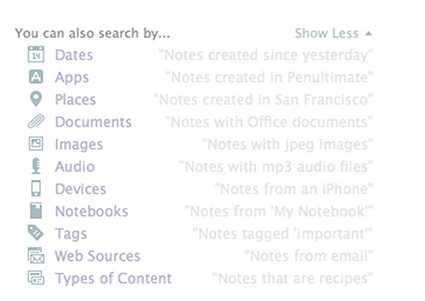

With Descriptive Search, those using Evernote on a Mac can use plain language to describe what is being sought. You can search by location you visited on a specific trip, by dates you know you were doing whatever is being sought, by type of device you used to upload the information and more. Click here for a video overview of the Descriptive Search functionality.

Still, within that same search field, Evernote offers codes or equations you can use to focus in on certain aspects of the content for which you are searching. Here are some examples:
  • created:20150115 finds notes created on January 15, 2015
  • updated:20150327 finds notes updated on March 27, 2015
  • intitle:"coffee" finds notes with coffee in their titles
  • resource:image/* searches for notes that include images
  • notebook:"Receipts" finds notes in the Receipts notebook
  • tag:"Mobile" finds notes tagged with Mobile
  • any:"New York" searches for notes that have New OR York in them, unlike how typing New York on its own in the search box will pull up notes that have both New AND York in them
  • todo:true finds notes with a checkbox that is checked
  • todo:false finds notes that contain an unchecked checkbox
  • todo:* searches for all notes that contain any checkbox at all
  • source:mobile finds all notes created on a mobile device

Many of my clients extend the power of Evernote for quickly finding what's needed via the Atlas and Shortcuts. By clicking the word Atlas in your Evernote account, you see a map and can locate any note based off the location in which it was added to your database. Likewise, under word Shortcut, you can access any note or notebook you've added to the shortlist of which content you access most frequently and, therefore, want most easily accessible. It is quite simple to add content to your Shortcuts by simply dragging a note or notebook atop the Shortcuts name and, then, dropping it into that section; however, I highly encourage you to keep your list of Shortcut content short so it doesn't become cumbersome to scroll through these options.

Above all else, though, I think Evernote's recent additions of Context and Augmented Intelligence empower me to most easily find whatever I might need quickly. If you are using Evernote Premium, it is with Context that you are given related notes from you own account, people from your LinkedIn network related to that note's content and relevant content for free from trusted news sources, like The Wall Street Journal, Fast Company, Inc Magazine, Pando Daily, CrunchBase, TechCrunch, Forbes and Lifehacker. On Evernote Business, the Context functionality adds related notes from team members, others in your company who many know more about the topic at hand and content from Factiva's web content. Context dramatically extends my ability to get work done within my Evernote workspace. Further, via Augmented Intelligence, my Evernote database is incorporating what it learns from how I use the tool to better provide me with what content it determines would be helpful, and it is quite fascinating. For example, if I've been adding content to specific notebooks, those notebooks will appear atop my list of notebook options when adding new notes on the go.

How do you find what you need quickly in your Evernote database? Do you utilize any of these tactics or are there any you'll be incorporating in your daily work habits?

Monday, December 29, 2014

Get Clear For The New Year Week #5: Clean Out And Organize Your Workspace

Now that we are just a few days away from 2015, by following the assignments in this series, you’ve laid an excellent foundation for success in the new year; however, in order to achieve your optimum success, it is important to establish a work environment that’s yet another tool in your productivity toolbox. If your paper and electronic files are unorganized and filled with unnecessary contents, they can be overwhelming and unhelpful. This week is an ideal time to “get clear for the new year” by proactively addressing your filing as well as where items are kept in your workspace.

First, take time to edit the contents of your workspace. When files are overstuffed with outdated information, it is difficult to locate what you need when you need it; therefore, it is vital to address your files before the new year, clearing out what no longer needs to be there.
  • Will the documents be relevant to work in the coming year? If you’ve completed the related project or the file contains last year’s receipts, move the content into storage with your archived files, rather than keeping it with your active files.
  • Do you need this piece of paper? What’s the worst that can happen if you throw it away?
  • Is the info on file somewhere else or easily accessible online?
If any file's contents are no longer (1) accurate, (2) applicable, (3) useful or (4) bringing you joy, consider getting rid of those contents. Can the discarded papers be recycled or do they need to be shredded? Further, if you are keeping something that would be easy to find again online, is it something you will reference frequently enough to justify the space it is taking to retain? Consider keeping only items that would be difficult to relocate or recreate.

Likewise, as you are purging the accumulated excess from your paper and electronic files, evaluate whether you can resell or recycle any technology that is no longer being used. Those devices, cords and accessories are taking up valuable real estate in your workspace, which could be devoted to items actually being used instead. Still, if you do utilize all the technological tools in your space, are there any that can be consolidated so you retain functionality while lowering the number of devices maintained? Keep in mind efficient use of what space you have.

Then, address the onslaught of emails received daily. Unsubscribe from eNewsletters you are not reading, consider bundling subscriptions that you do read via The Swizzle or Unroll.me and create a system for diligently keeping up on reading.

Take time to verify everything in your workspace has a home as well as that each item is in its assigned home. When folks are looking to buy real estate, you often hear “location, location, location”, and I challenge you to consider your workspace in the same light as buying real estate where location really does matter. The space closest to where you will be working is considered the most valuable real estate location; therefore, that area should be filled with what items you use most frequently. Then, the placement of items moving out from there should be based on how often the item is needed, placing items used least frequently the farthest away.
  • Make certain there is a 2014 tax folder to hold incoming documentation for the year ending; then, create a 2015 tax folder to be prepared for the upcoming new year’s tax records. 
  • Get accounting records up to snuff by writing off uncollectable accounts receivable; while accounts receivable write-offs are tax deductions this year, they become a bonus if collected in the new year.
  • Make sure your tech tools are housed near where they will be used, that all accessories are still easily accessible and that any upgrades needed are completed before the new year starts.
  • Simplify your office supplies and plan space for what new supplies will be needed in the new year.

By focusing on editing out what is no longer needed and, then, strategically assigning homes to what you will be keeping, your workspace will be a useful tool in your productivity toolbox, driving your optimum success.

ASSIGNMENT: Visit here to see a video related to this blog post; then, this week, take time to edit the contents of your workspace, removing contents that are no longer accurate, applicable, useful or bringing you joy, and verify everything to remain has a home as well as that each item is in its assigned home. What needs to be added or removed in order to simplify your work for better achieving your desired results? Be strategic, aligning the set-up in your workspace with the goals you’ve set, making sure the workspace is another tool in your productivity toolbox.

Leave a comment below about your ongoing system for editing the contents of your workspace. What tends to build up most quickly? How will you maintain the productive workspace that you’ll be creating this week?

Friday, August 22, 2014

Tried and True Rules to Organize for Success

 I partner with busy professionals to help them efficiently and effectively use their available resources for increasing productivity and sharpening their business organization. Throughout the process, I find myself utilizing several organizing- and productivity-focused mantras. Often, these mantras are catchy phrases to stick in their heads as a reminder of what habits need developing. Here are 10 of my most frequently used mantras:

1. “A place for everything and everything in its place”… Once something has a designated home, it is more likely to return to that home after each and every use. Further, when you know where things belong, you can avoid procrastination related to putting things away, especially as new items enter your space that are related to what you already have.

2. “Keep like with like”… When similar or related items are grouped near each other, it makes finding items needed much simpler for yourself as well as others using the same space. For example, store the tape, scissors and stapler in one drawer together.

3. “Location, location, location”… Frequently used items should be kept most easily accessible and closest to where you are usually working. For example, the items you use daily can be kept on your desktop or the top drawer of your desk. Then, items should be stored increasingly further from you as they are used less and less often. What you reference only annually or very rarely could be in a different room or, even, in a different building. Likewise, items should be stored near where they will be used in order to save time and make it easier to locate what’s needed when it’s needed; for example, keep printer paper near the printer.

4. “Horizontal is hidden while vertical is visible”… Whether it’s in a file drawer, a desktop file organizer or organizers designed to hang on the wall, it’s easier to see the contents when they are stored vertically. Alternatively, when items are stored horizontally, the items on top hide what items are further below, making it more difficult to quickly find what you need. Save time searching and make it easier to see what is where by using vertical storage solutions.

5. “Don’t pile it; file it”… Rather than piling a paper in your To File tray, just file each sheet of paper as you get it, thereby never having to schedule a mass filing session again.


6. “Minimize paper clutter”… Since it’s easier to locate what’s needed from electronic documents than paper files, when you must keep the contents of a paper document, scan whatever you can. Options like Doxie Go, Fujitsu ScanSnap and Neat make it easy to convert your paper to electronic. Likewise, limit unnecessary incoming paper by stopping junk mail before it arrives; eliminate unwanted mail with catalogchoice.org, greendimes.com, dmachoice.org, PaperKarma stopthejunkmail.com or 41pounds.org.

7. “Utilize the power of one”… While many say that one is a lonely number, I believe that one is extremely powerful for enhancing one’s productivity. It’s important for each professional to have one calendar for both work and personal items, one running tasks list that funnels into one daily to-do list for each day, one “data dump” that enables our brains to think instead of remember everything, one address book to better maintain all our contacts’ information and one weekly strategy session, dedicating time each week to create the next week’s game plan. With one of each, we’re less likely to duplicate or have anything slip through the cracks.

8. “Done is better than perfect”… Stop procrastinating and start moving forward on your existing projects. If a task can be done in 5 minutes or less, just do it; if a task will take longer, get started. You might be surprised by how much you get done when you simply start working on it; plus, when you allow yourself to just do rather than striving for perfection, you can accomplish so much, leading to greater productivity, and you can always tweak your work later.

9. “Neat is not the same as organized”… While neat is defined as “in a pleasingly orderly and clean condition”, organized is actually defined as “structured and systematized”. In other words, while something that is neat will look attractive, it is only be implementing organization that the environment becomes another tool in your toolbox, better empowering you to quickly find what you need when you need it and to get more done in less time.

10. “Plan your work and work your plan”… Every action item that is assigned a time during which it can be addressed is more likely to be completed. If we wait for that free time in which we envision completing said task, that task might never move from “to-do” to “done”. While distractions and unplanned issues might arise, if you start the week with a game plan, you can more easily tweak each day to make sure all tasks and appointments get resolved.

Do you currently utilize any of these mantras? Are there any other mantras that you find helpful in your efforts to be more productive and more organized?