Brought To You By Emily Parks
Productivity Consultant at Organize For Success, LLC...
Helping You Make Every Minute Matter!


Showing posts with label Evernote app. Show all posts

Tuesday, March 31, 2015

Evernote Can Boost Your Collaboration

Collaborate Better With Evernote
Although Evernote provides an excellent catchall for what I need to reference or am using to complete my current projects, its usefulness goes well beyond containing content in a manner that makes it easy to find. My experience repeatedly shows that Evernote's greatest value comes from how it supports and empowers collaboration. Yes, sharing notes can aid my workflows, but sharing Notebooks, using Work Chat and pulling Context from my LinkedIn network or Notes of others in my Business' accounts can really boost my abilities.

For example, when I'm chairing a non-profit committee or serving on a Board of Directors, Evernote enables sharing more than any online file repository. If we were to use Dropbox or Google Drive, we would be limited to Word documents, Excel spreadsheets, PowerPoint presentations and the like; however, by sharing a Notebook in Evernote, we can share those same types of documents PLUS any content included in any of that Notebook's notes, like typed text, articles clipped from the Internet, photos of handwritten notes, audio and video files created right in the app itself, checklists and much more.

Likewise, when I'm traveling with others, Evernote enables sharing all sorts of information related to our upcoming trip. This includes a packing list of who is bringing what, our reservations for flights, airport shuttle or rental car and hotel rooms, our expected itineraries, things we want to do while visiting this destination and contact information for places we will visit or folks we will be seeing. Avoid email madness by simply sharing a Notebook.

Whenever someone with a Premium or Business account shares a Notebook with others, they can choose what access the invitee would have for that content to be shared. If the access provided is "can edit" or "can edit and invite", voila... Collaboration is empowered! Publicity teams can share and continually update a list of press contacts. A creative services team can save design inspiration while going back and forth on production of new campaigns. Corporations can allow all employees to easily access the most up-to-date version of that company's employee handbook or any forms related to human resources, like requests for time off.

I like using Notebooks shared in Evernote for group meetings. Via that Notebook, I can seamlessly share with all attending any related information: documents to be reviewed beforehand, meeting agenda, summary notes or minutes, who is responsible for what follow-up to be completed by when and anything requested during the meeting to be shared with others. In addition, as long as I'm on the Premium or Business version, others can add requests to the agenda or make edits to the minutes without emailing back and forth with others or awaiting someone else doing it. Click here for a video of me discussing how I use this aspect of Evernote.

You can always change permissions or stop sharing, ensuring you aren't unnecessarily constrained by Evernote. Yet, when you can share what's needed for moving forward on the project at hand without clogging up someone's email inbox, there is definitely value. When folks can have at their fingertips what is needed for getting things done, there is value.

How do YOU use Evernote? In which of your uses have you found Evernote's greatest value?

Friday, March 20, 2015

Evernote's Tools Empower Your Paperless Productivity

While we do not live in a society that fully supports efforts to go paperFREE, there are plenty of strong solutions to better enable and support a paperLESS existence. Among those options, I really like what is provided by Evernote's suite of productivity apps. Today, let's take a deeper look at what's available.

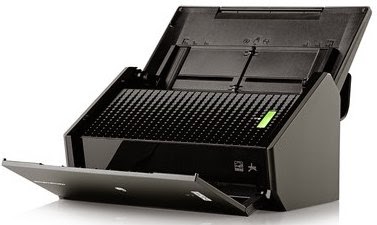
If you like using a physical scanner, Fujitsu ScanSnap document scanners offer one-button ease of
use, no matter whether you're scanning from the road or your desktop. Now, thanks to the partnership that Fujitsu has developed with Evernote, pushing your scan button on a Fujitsu ScanSnap device makes your documents instantly available and searchable across all your computers and mobile devices. Use any Fujitsu ScanSnap device to scan directly into Evernote, choosing your destination notebook; Evernote synchronizes your content across devices and updates your content for image recognition so you can quickly find what you need from anywhere.

Alternatively, if you prefer the simplicity of an app, Scannable captures the paper in your life quickly, easily and clearly, transforming the content into high-quality scans to be saved or shared immediately. When you have the Scannable app open and hover over what is to be scanned, it instantly recognizes business cards, receipts, full-size documents and Post-It notes, scanning the content without you having to push any buttons; then, scans are automatically cropped and enhanced so you get crystal clear files to quickly find or share as needed. For a video demo, click here.

Recently, I got a note from one of my clients, which I think highlights the vast usefulness of this tool. As she stated, "I thought I learned so much about Evernote from the earlier classes I took, but, when I took the workshop you presented to the National Association of Women Business Owners, you taught me about Scannable and, once again, changed my life. I have used it to scan in important documents that immediately needed to be emailed. I can scan anywhere, and the documents are permanently saved in my Evernote so I have them when and where I need them." The benefits of the Scannable app are limitless!

Further, even without any physical scanner or additional app, you can easily utilize your mobile device's camera to upload a photo of your Post-It note, document, business card or receipt directly from within your installed Evernote app. Just like a scan from the Fujitsu ScanSnap or Scannable app, each of these photos is processed for one of Evernote's most popular features: the ability to search for text within images. When a note is sent to Evernote via synchronization, the system searches for content in the file types of PNG, JPG or GIF, which are sent to a different set of servers whose sole job is to perform Optical Character Recognition (OCR). The results of OCR for any image are added to its note in the form of hidden metadata, which is indexed and available for searching. The accuracy of the text recognition is dependent on the quality of the photo, and it can take anywhere from a few minutes to a few hours for images to be processed for OCR. Still, the ability to search for text in pictures is so very cool!

Beyond how Evernote's OCR technology empowers your paperless abilities, using any of the aforementioned options to upload images of others' business cards can boost your productivity further. Via the Evernote suite of apps and its partnership with LinkedIn, business cards become business relationships. Scannable transforms cards into rich contacts with LinkedIn details, photos and the ability to save it all in your phone's contacts. Taking a photo from your phone's camera allows you to connect with that person on LinkedIn as well as save the contact to your phone's database. The content of the business card becomes actionable to further build that connection, taking you beyond the piece of paper.

Do you utilize Evernote for empowering paperless productivity? What types of paper do you convert to electronic in your Evernote database? Are there tips in this post you'll implement soon?