Brought To You By Emily Parks
Productivity Consultant at Organize For Success, LLC...
Helping You Make Every Minute Matter!


Tuesday, March 31, 2015

Evernote Can Boost Your Collaboration

Collaborate Better With Evernote
Although Evernote provides an excellent catchall for what I need to reference or am using to complete my current projects, its usefulness goes well beyond containing content in a manner that makes it easy to find. My experience repeatedly shows that Evernote's greatest value comes from how it supports and empowers collaboration. Yes, sharing notes can aid my workflows, but sharing Notebooks, using Work Chat and pulling Context from my LinkedIn network or Notes of others in my Business' accounts can really boost my abilities.

For example, when I'm chairing a non-profit committee or serving on a Board of Directors, Evernote enables sharing more than any online file repository. If we were to use Dropbox or Google Drive, we would be limited to Word documents, Excel spreadsheets, PowerPoint presentations and the like; however, by sharing a Notebook in Evernote, we can share those same types of documents PLUS any content included in any of that Notebook's notes, like typed text, articles clipped from the Internet, photos of handwritten notes, audio and video files created right in the app itself, checklists and much more.

Likewise, when I'm traveling with others, Evernote enables sharing all sorts of information related to our upcoming trip. This includes a packing list of who is bringing what, our reservations for flights, airport shuttle or rental car and hotel rooms, our expected itineraries, things we want to do while visiting this destination and contact information for places we will visit or folks we will be seeing. Avoid email madness by simply sharing a Notebook.

Whenever someone with a Premium or Business account shares a Notebook with others, they can choose what access the invitee would have for that content to be shared. If the access provided is "can edit" or "can edit and invite", voila... Collaboration is empowered! Publicity teams can share and continually update a list of press contacts. A creative services team can save design inspiration while going back and forth on production of new campaigns. Corporations can allow all employees to easily access the most up-to-date version of that company's employee handbook or any forms related to human resources, like requests for time off.

I like using Notebooks shared in Evernote for group meetings. Via that Notebook, I can seamlessly share with all attending any related information: documents to be reviewed beforehand, meeting agenda, summary notes or minutes, who is responsible for what follow-up to be completed by when and anything requested during the meeting to be shared with others. In addition, as long as I'm on the Premium or Business version, others can add requests to the agenda or make edits to the minutes without emailing back and forth with others or awaiting someone else doing it. Click here for a video of me discussing how I use this aspect of Evernote.

You can always change permissions or stop sharing, ensuring you aren't unnecessarily constrained by Evernote. Yet, when you can share what's needed for moving forward on the project at hand without clogging up someone's email inbox, there is definitely value. When folks can have at their fingertips what is needed for getting things done, there is value.

How do YOU use Evernote? In which of your uses have you found Evernote's greatest value?

Friday, March 27, 2015

Tactics to Quickly Find What's Needed in Evernote

Whether you are seeking your own words, images, documents, checklists or content culled from elsewhere, Evernote's powerful search and discovery features make it easy to quickly find what you need when you need it, no matter from where you are seeking it. How would you like to stop wasting time, searching for what you "know" you have?!? Well, look no further!

Anytime you enter text in the Search field of your Evernote account, it searches all the content in your notes' titles, your notes' bodies, notebook names, tags you've used and content in your URLs for notes in your database, including text in photos that has been processed by Optical Character Recognition; plus, in Business or Premium, you can search text inside attachments, PDFs and spreadsheets. Yet, Evernote's search capabilities go well beyond a simple keyword search option.


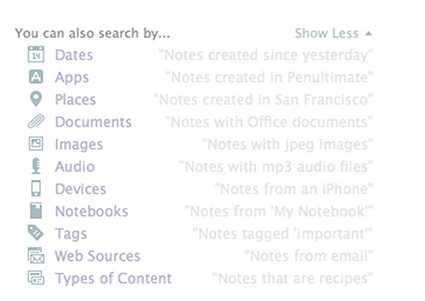
With Descriptive Search, those using Evernote on a Mac can use plain language to describe what is being sought. You can search by location you visited on a specific trip, by dates you know you were doing whatever is being sought, by type of device you used to upload the information and more. Click here for a video overview of the Descriptive Search functionality.

Still, within that same search field, Evernote offers codes or equations you can use to focus in on certain aspects of the content for which you are searching. Here are some examples:
  • created:20150115 finds notes created on January 15, 2015
  • updated:20150327 finds notes updated on March 27, 2015
  • intitle:"coffee" finds notes with coffee in their titles
  • resource:image/* searches for notes that include images
  • notebook:"Receipts" finds notes in the Receipts notebook
  • tag:"Mobile" finds notes tagged with Mobile
  • any:"New York" searches for notes that have New OR York in them, unlike how typing New York on its own in the search box will pull up notes that have both New AND York in them
  • todo:true finds notes with a checkbox that is checked
  • todo:false finds notes that contain an unchecked checkbox
  • todo:* searches for all notes that contain any checkbox at all
  • source:mobile finds all notes created on a mobile device

Many of my clients extend the power of Evernote for quickly finding what's needed via the Atlas and Shortcuts. By clicking the word Atlas in your Evernote account, you see a map and can locate any note based off the location in which it was added to your database. Likewise, under word Shortcut, you can access any note or notebook you've added to the shortlist of which content you access most frequently and, therefore, want most easily accessible. It is quite simple to add content to your Shortcuts by simply dragging a note or notebook atop the Shortcuts name and, then, dropping it into that section; however, I highly encourage you to keep your list of Shortcut content short so it doesn't become cumbersome to scroll through these options.

Above all else, though, I think Evernote's recent additions of Context and Augmented Intelligence empower me to most easily find whatever I might need quickly. If you are using Evernote Premium, it is with Context that you are given related notes from you own account, people from your LinkedIn network related to that note's content and relevant content for free from trusted news sources, like The Wall Street Journal, Fast Company, Inc Magazine, Pando Daily, CrunchBase, TechCrunch, Forbes and Lifehacker. On Evernote Business, the Context functionality adds related notes from team members, others in your company who many know more about the topic at hand and content from Factiva's web content. Context dramatically extends my ability to get work done within my Evernote workspace. Further, via Augmented Intelligence, my Evernote database is incorporating what it learns from how I use the tool to better provide me with what content it determines would be helpful, and it is quite fascinating. For example, if I've been adding content to specific notebooks, those notebooks will appear atop my list of notebook options when adding new notes on the go.

How do you find what you need quickly in your Evernote database? Do you utilize any of these tactics or are there any you'll be incorporating in your daily work habits?

Friday, March 20, 2015

Evernote's Tools Empower Your Paperless Productivity

While we do not live in a society that fully supports efforts to go paperFREE, there are plenty of strong solutions to better enable and support a paperLESS existence. Among those options, I really like what is provided by Evernote's suite of productivity apps. Today, let's take a deeper look at what's available.

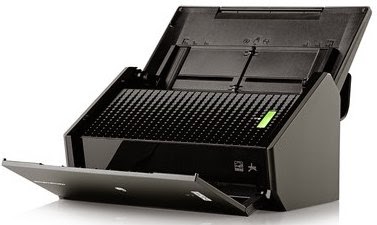
If you like using a physical scanner, Fujitsu ScanSnap document scanners offer one-button ease of
use, no matter whether you're scanning from the road or your desktop. Now, thanks to the partnership that Fujitsu has developed with Evernote, pushing your scan button on a Fujitsu ScanSnap device makes your documents instantly available and searchable across all your computers and mobile devices. Use any Fujitsu ScanSnap device to scan directly into Evernote, choosing your destination notebook; Evernote synchronizes your content across devices and updates your content for image recognition so you can quickly find what you need from anywhere.

Alternatively, if you prefer the simplicity of an app, Scannable captures the paper in your life quickly, easily and clearly, transforming the content into high-quality scans to be saved or shared immediately. When you have the Scannable app open and hover over what is to be scanned, it instantly recognizes business cards, receipts, full-size documents and Post-It notes, scanning the content without you having to push any buttons; then, scans are automatically cropped and enhanced so you get crystal clear files to quickly find or share as needed. For a video demo, click here.

Recently, I got a note from one of my clients, which I think highlights the vast usefulness of this tool. As she stated, "I thought I learned so much about Evernote from the earlier classes I took, but, when I took the workshop you presented to the National Association of Women Business Owners, you taught me about Scannable and, once again, changed my life. I have used it to scan in important documents that immediately needed to be emailed. I can scan anywhere, and the documents are permanently saved in my Evernote so I have them when and where I need them." The benefits of the Scannable app are limitless!

Further, even without any physical scanner or additional app, you can easily utilize your mobile device's camera to upload a photo of your Post-It note, document, business card or receipt directly from within your installed Evernote app. Just like a scan from the Fujitsu ScanSnap or Scannable app, each of these photos is processed for one of Evernote's most popular features: the ability to search for text within images. When a note is sent to Evernote via synchronization, the system searches for content in the file types of PNG, JPG or GIF, which are sent to a different set of servers whose sole job is to perform Optical Character Recognition (OCR). The results of OCR for any image are added to its note in the form of hidden metadata, which is indexed and available for searching. The accuracy of the text recognition is dependent on the quality of the photo, and it can take anywhere from a few minutes to a few hours for images to be processed for OCR. Still, the ability to search for text in pictures is so very cool!

Beyond how Evernote's OCR technology empowers your paperless abilities, using any of the aforementioned options to upload images of others' business cards can boost your productivity further. Via the Evernote suite of apps and its partnership with LinkedIn, business cards become business relationships. Scannable transforms cards into rich contacts with LinkedIn details, photos and the ability to save it all in your phone's contacts. Taking a photo from your phone's camera allows you to connect with that person on LinkedIn as well as save the contact to your phone's database. The content of the business card becomes actionable to further build that connection, taking you beyond the piece of paper.

Do you utilize Evernote for empowering paperless productivity? What types of paper do you convert to electronic in your Evernote database? Are there tips in this post you'll implement soon?

Tuesday, March 10, 2015

Is Your Office Organized as a Tool for Your Success?

While many people focus on team members, processes and technology as the best tools for driving desired results, the space in which you work can be another tool in your productivity toolbox. Just as important as "what" you keep is "where" you keep it all, and there are key concepts to keep in mind as you organize your office for your greatest success. In celebration of today's National Organize Your Home Office Day, let's look at manageable steps you can take to organize your workspace.

First, retain only what's accurate, applicable, useful or bringing you joy. That rule of thumb applies to paper, electronic files, email and physical objects alike. The less you retain then the less you have to dig through in order to find what's needed, which makes it easier to get things done more quickly.

Second, be strategic about the placement of anything and everything to remain in your workspace. Assign homes to what you will keep. When everything has a home and everything is in its home, it's easier to quickly put your hands on what's needed when it's needed. Likewise, group like items together, assigning homes that place any paper, electronic files, email or physical objects near where they will be needed or used.

Third, contain what you retain in appropriate storage tools to create applicable limits. Physical items can go in bins, baskets and boxes. Paper can go in files and folders. Electronic files can go in cloud storage solutions... The key is to train yourself to purge or divide once the storage tool gets full.

Remember that labels and color enhance the effectiveness of your organizational solutions. For example, adding a label to anything helps you more easily determine what it contains and where to put what is newly arrived in your workspace. In the same way, assigning color drives behavior, particularly when you associate a color you like with contents for an action you avoid.

Utilize the mantra "horizontal is hidden; vertical is visible"... Whether you choose a vertical file holder for your desktop or baskets with labels on the front to fill your shelves, focus solutions on avoiding piles. Plus, consider how you can best utilize the walls and door of your office for additional storage space, making it easy to see at a glance what belongs where.

As if you were considering a real estate purchase, think "location, location, location" when organizing your office. The space in closest proximity to where you are most often working should be utilized for what you use most frequently. As you move away from that space, you should start with current, active files and move towards archive files that are less frequently accessed.

Finally, always remember "the power of one". While many folks say that one is a lonely number, I contend that one is a very powerful number when associated with productivity. This means one calendar, one running list of tasks to be done, one daily to-do list, one "data dump" for all your information, one address book, one weekly strategy session and one system for all your filing.

What techniques do you utilize for keeping your workspace productive and how do you maintain your organization?

Monday, March 9, 2015

Tips to Utilize Email for Adding & Organizing in Evernote

Last week, I shared with you the many forms of information that can be added in multiple ways to your Evernote database. In that list, I included "send to your Evernote account's email address", but that might've led to even more questions. Let's dive a little deeper into this functionality.

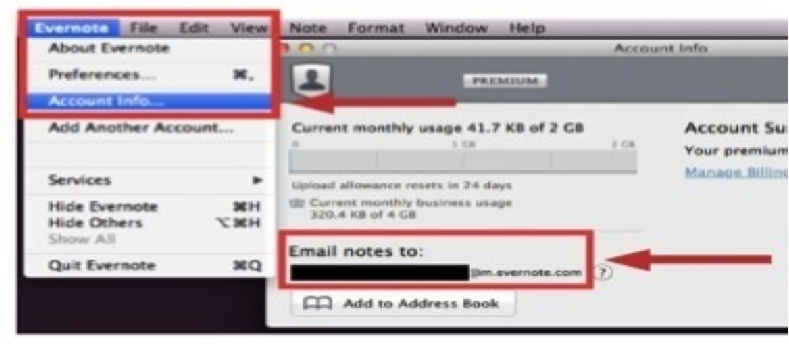
On a laptop or desktop version of the Evernote app, follow Evernote > Account Info > Email Notes To for finding the email address assigned to your specific database. Likewise, on the iPad or iPhone app, tap the elephant head image to get back to your main menu; from there, tap the gear image in the top, left-hand corner, follow General > Evernote Email Address, and you will see the email address assigned to your specific database. Finally, on an Android version of the Evernote app, tap the image of three dots stacked vertically to follow General > Evernote Email Address, and you'll find the email address assigned to your specific database.

Whatever you see as that email address assigned to your Evernote database is designed to be complicated and difficult to remember so others can't start sending content into your Evernote account. I find it's not realistic to think I'll just remember what that email address is; therefore, I recommend saving your email address as a contact in your address book. Often, I use Evernote as the first name and Upload as the last name. Once that information is saved as a contact, when I'm sending an email to my Evernote database, in the To line, I start typing Evernote Upload, and the address populates for me. It's such an easier way to quickly add content to my Evernote database!

When you started your Evernote account, the first notebook given to you was labeled as your "default" notebook. As content is created in alternative manners, like emailing or scanning into Evernote, that content will automatically go to your default notebook. While you can always go into a different notebook's settings to change that into your default, overriding the original notebook's settings, you can alternatively just rename your original notebook to make the default easier to find. I recommend renaming your default notebook as your Inbox, just like the Inbox in your email management tool. Then, you can process newly received content from your Inbox just like you process emails from that Inbox location.

On the other hand, if you'd rather the content you are emailing into your Evernote database bypass that default notebook, doing directly to a desired destination, you can utilize the email's subject line to aid organization... Add @ before an existing notebook name to add the content as a note in that specific notebook. Add # before an existing tag to add that tag to the note being created by the content you're emailing. Insert a reminder as !YYYY/MM/DD. 

If you choose to utilize the subject line of an email you are sending into your Evernote database, there are a couple requirements to remember. First, the left-to-right order of your subject line must be note name, reminder, notebook name and, then, tags. While you do not have to include each one of those elements, Evernote will understand the information you are sending only if you have the information in that specific order. Second, any notebook or tag to be added via an email subject line must already exist in your database; you cannot use a subject line to create a new notebook or a new tag. Likewise, if the notebook name or tag doesn't match the exact spelling of what already exists, the system won't recognize it as a match so it won't work.

Regardless of whether you are adding typed text, video and audio files, documents, checklists or photos, emailing into your database is a technique to simplify the process. For more, view my related video by clicking here, and, then, let me know your thoughts.

Do you use email to add content into your database? What successes have you had? Which of the aforementioned shortcuts will you implement with your Evernote use?

Wednesday, March 4, 2015

Procrastinating for Less Stress and Better Well-Being

While I previously wrote about overcoming procrastination here and here, there is an interesting holiday occurring this week that takes a very different view of things. At the beginning of each March, Procrastinators' Club of America encourages folks to celebrate National Procrastination Week, which is all about putting off important tasks.

I can hear you now... "What?!? Emily, have you lost your mind? Why would you encourage us to put off important tasks?" Well, there's much more to it than just putting off what must be done.

This week's holiday is absolutely not encouraging you to be lazy or develop self-destructive behavior; instead, the claim is that putting off such important tasks will open up time in your schedule for what activities could not be accomplished if you were working on completing those important tasks. That means time for exercising, meditating, doing your hobbies, grooving to some tunes or just resting. Refreshing, eh?

The philosophy behind National Procrastination Week directly reflects the concept that everything to which you say "yes" means there is something else to which you'll need to say "no". There are only 168 hours or 10,080 minutes in any given week; with the limited resource of time at your disposal, you have to pick and choose how you want to invest it. Taking a mental and emotional break from the "do, do, do" perspective of our society can decrease folks' stress and anxiety.

What are some activities on this week's schedule that you can put off or delay until later? What will you do with the newly available time that results?

Monday, March 2, 2015

Add Many Forms of Info in Multiple Ways to Evernote

One of the features offered by Evernote that makes it so beneficial for users' writing, collecting, finding and presenting all their lives' work is the ability to upload different forms of information in multiple ways.

Beyond the ability to capture typed text, Evernote's suite of productivity apps opens your options. It allows photos, handwritten notes, audio & video files, web clippings and more to be added to your database. The value of having all such particulars in one place is so powerful, saving you time in finding what you need by checking only one source for the necessary information.

Once you've created the username and password for your database, you can manually create any note, whether on a laptop, desktop, smartphone, tablet or web browser. However, I highly recommend you not limit yourself to adding content in that one method... There are so many other options!

Alternate ways to create content in your Evernote database include the following:
- Use web clipper installed in your Chrome, Firefox, Internet Explorer or Safari web browser
- Clip content from the clipper atop your Mac homescreen
- Scan from your Fujitsu ScanSnap device or the Scannable app
- Automate creation with If This Then That, Zapier or Podbox
- Skitch or Clearly apps
- Utilize FileThis for bringing in PDFs of your monthly bills
- Send to your Evernote account's email address
- And much more!

For a video on what contents I like to include in my Evernote database and how I normally add that content, please click here. Meanwhile, I'd love your feedback in the comments... What sort of information do you like adding to your Evernote database? Using what method do you prefer to add that content and create new notes?

Tuesday, February 24, 2015

Do You Practice Single-Tasking or Prefer Multi-Tasking?

 Today’s business professionals are expected to wear more hats than years before, pushing themselves to get more done in less time, and that can make it appealing to multi-task. Unfortunately, in reality, multi-tasking has the opposite effect on one’s productivity, minimizing outputs and increasing stress. It’s a lose-lose situation!

Instead, let us take time to celebrate today’s Single Tasking Day. 

While projects are a conglomeration of different tasks, if you break projects down into individual tasks and create a list of what tasks need to be done, you can work your way down the list, one by one by one. Start each task with a verb that drives action, assign a “when” for each “what” to be accomplished and set a timer for how long you can block out distractions to focus your efforts on each of those tasks.

Now, don’t get me wrong… I’m not discounting the value of simul-tasking, but that is very different from multi-tasking. Whereas multi-tasking involves bouncing between two tasks that require thought and focus, simul-tasking involves pairing any activity that requires thought (like reading your daily feed of blog posts) with an activity that can be done mostly automatically (like walking on a treadmill). Simul-tasking can help mark two things off your to-do list at once; however, it does require just the right pairing of activities, and it’s not always possible to find tasks that can be done without thinking.

As you are working on single tasking, consider the interruptions you face in a typical workday, whether that’s emails, calls, texts, folks stopping by your office, pings or dings of notifications and more. If you are accustomed to responding immediately to each of those emails, calls, texts, visitors and notifications, consider this: Those folks reaching out to you don’t know if you are sitting at your desk or in a meeting; if you block off a bit of time to really focus on the task at hand and respond to those needing your attention once you are done, those folks will assume you’ve been in a meeting, you get more accomplished in less time and you no longer have that task hanging over your head as an item you must do.

Take action and attempt single tasking this week. Then, let me know how it works for you. I’d love to hear your successes or what you found most challenging about it!


Monday, February 9, 2015

Show Your Computer a Little TLC to Combat Clutter

Whether evaluating emails, electronic documents, paper files or physical objects, it's important to remember that you do not need to hold onto whatever is no longer accurate, applicable, useful or bringing you joy. In this day and age, we face an information avalanche, particularly in the digital realm, which is why today's National Clean Out Your Computer Day is so very important.

Our technological devices are being manufactured with a growing capacity for storage; further, online file repositories are offering more and more storage space for free or really low pricing. For example, by referring your friends to Dropbox, you can get up to 18 GB of free storage space; alternatively, for just $99/year, you can get an incredible 1 TB of storage space... Wow! Options like those make it all too easy to keep an excess of electronic documents, making the situation such that most folks have to dig through a great deal of clutter to quickly find what's needed.

Take steps now to combat electronic clutter:

- Review your files and programs for what is still accurate, applicable, useful or bringing you joy.

- Get rid of what doesn't fit that criteria; delete junk files, duplicate files, temporary files and cookies.

- Then, group like with like for what remains. Be sure the placement of your remaining files and programs will make sense to you when you are looking for something.

- Particularly for PC users, make sure you have your computer set-up to automatically run maintenance actions, like a disk cleanup and disk defragmentation.

Originally sponsored by the Institute for Business Technology back in 2000, this National Clean Out Your Computer Day is an excellent time to show your computer a little TLC.

What steps will you take now to clean out your computer?

Wednesday, January 28, 2015

What steps are you taking to protect your clients', vendors', employees' and own data?

In the United States & Canada, today is Data Privacy Day; in Europe, it is referred to as Data Protection Day. Yet, regardless of from where you are reading this post, you must understand the importance of addressing data privacy and using data protection best practices. Has your company set a data privacy policy? Are you personally utilizing best practices for protecting your data, keeping it safe, secure and private? How do you address your clients', vendors' and employees' need for data protection? Many tech tools promote individual control over personally identifiable information, but there are many details to be considered, such as these:

  • Has your business incorporated technological innovations to protect what information is stored in your system and shared between your team members?
  • Have you reviewed the privacy settings on each of your social media platforms, verifying that you are sharing with others only the information you'd like displayed to them?
  • Have you set each of your online accounts to require two-factor authentication so any account accessed by a device the platform doesn't recognize will be asked for a verification code?
  • Do you use a unique and complex password for each account? How often do you reset each?
  • Have you created a habit for logging out immediately upon finishing use of any account?
  • Have you strengthened your passwords to include both uppercase and lowercase letters, numbers and symbols, creating a habit to change or update them regularly?
  • Has your business enacted transparency on usage so your constituents are very clear about the manner in which you will be utilizing whatever information they share with you? People want to know with whom their data is being shared, what type of data is being collected from them and how the data is being used; are you proactively answering those questions?
  • Do you get consent from folks in a photo prior to sharing it?
  • As cookies are used to remember and track your online data, habits and preferences, does your business have a policy for their utilization, particularly how often they are to be deleted?
  • Do you stop and think before utilizing public WiFi, remembering that it is not a secure connection and avoiding transactions that should be kept private?
  • Have you set-up your mobile devices so you can easily shut each down remotely if stolen or lost? Do you have antivirus software installed on each of your mobile devices? Further, when replacing a mobile device, do you know how to dump data off the old one?
Above all else, though, it is imperative to be aware of what data you're posting online. As explained in the cyber privacy parable at http://www.youtube.com/watch?v=H0I7jQb37bo, there are many folks able to access what you post online, way beyond those friends or connections with whom you consciously know you are sharing. Advertisers, news outlets, governments and criminals alike are interested in what you are posting, but you have control over what information you put out there.

Further, as outlined at http://bit.ly/1wBMFL6, there are activities for which people are willing to trade privacy to get ease of use. Be aware of this feedback so you can adapt your processes accordingly, but never take advantage of how your consumers feel, trading privacy for ease of use only when it is absolutely necessary. If you want customers to trust you, it is important for you to respect their personal data. In what instances can you offer both privacy and ease of use?

What is your business' data policy? What steps are you taking to protect your own data? How do you address your clients', vendors' and employees' need for keeping data safe, secure and private?

Saturday, January 24, 2015

Is It Time to Re-Start Your New Year's Resolutions?

Every January, we flip the page to a new calendar year, and many of us attempt to write a new story on the blank pages of a new year. We set goals and make resolutions, like "spend less, save more", "quit smoking", "get fit and stay healthy", "lose weight", "enjoy life to the fullest", "workout more", "work less" and "get organized". As National Get Organized Month, each January is the perfect time to GO and get started on these endeavors; however, if you get sidetracked or fall short of sticking with your resolutions, it's okay.

Have you had a bit of backsliding as related to your 2015 resolutions? Did you miss a scheduled workout as you are working to get in better shape? Did you forget to sort last week's stack of mail as you are working to get more organized? Don't fret! Instead, just start your efforts back up again.

If you were driving from Florida to Maine and got lost in North Carolina, would you simply turn around and return to Florida? Not likely. Instead, you'd probably just find your way and continue traveling to your destination. Achieving goals, meeting objectives and keeping resolutions can be exactly the same.

Be easy on yourself, don't feel guilty if you have setbacks, and, above all, do not give up. Your best bet for success is to break your goal into small, realistic steps and grow into your transformation. If you slide a bit, keep trying. I know you will eventually get there.


Thursday, January 22, 2015

Top 10 Ways To Make Email a Better Productivity Tool

Did you know that the average business professional gets at least 150 new emails each workday? I have clients that can easily reach 300 or 400 new emails on any given day, and many of them feel strongly that handling email is a very time-consuming aspect of the workday... Wow! It can make you wonder how any real work gets done amidst simply reading all those messages.

While there are countless tools and techniques that'll help you use email to organize for success while getting more done in less time and quickly finding what you need, here are a few solutions I have found to offer the greatest results:

1. Shift your mentality from "checking" to "processing" your email so your email inbox is no longer a holding zone:

  • Tasks taking less than 5 minutes should be done when the message is received while tasks taking longer should be added to your running to-do list
  • Appointment requests should be moved to your calendar
  • Reference emails should be quickly moved to personal folders
  • Trash is not really junk and should be moved to the trash

2. If the average person needs anywhere from 3 to 8 minutes or more to really refocus after any distraction, don't make email a distraction; think of OHIO and "only handle it once" for each message, including reading and processing each email.

3. It is easier to quickly find what you need when you need it if you aren't searching through electronic clutter; therefore, there is no need to hold onto whatever is no longer accurate, applicable, useful or bringing you joy. Further, when determining what to save or delete, consider what can be easily located online later... There's no need to take up valuable space on your computer when you can easily find that information online whenever it is needed.

4. Send fewer emails to get fewer emails back. Although it sounds simple when stated like that, we are in a society trained to quickly shoot out an email when we need to tell or ask someone something. This can be excellent for having documentation of your communications; however, one simple phone call can element quite a bit of back-and-forth when the topic is more complex or when you need an answer to included questions.

5. Unsubscribe from eNewsletters you aren't reading; otherwise, consider culling subscriptions you maintain and stay up-to-date reading in a daily "roll-up" or "bundle" via Unroll.me.

6. Master the art of creating reference folders by having enough that each email to be kept has a home while limiting the number of folders so no one email could appropriately fit in multiple. If you struggle with where to file a message upon its receipt, how will you ever be able to locate it again later?

7. Utilize automated rules to sort email into folders... Highlight what needs time-sensitive attention by directing it into a folder designated to that particular sender or subject line topic. Cull together what can be attended to more conveniently on a later date and time, setting messages from that sender to bypass the inbox and go to a separate Personal Folder all their own.

8. Better employ all the features offered by your email management tool, like Delay Send, Send Again, Meeting Requests and renaming your received emails' subject lines.

9. If you have been emailing someone back and forth, each subsequent email contains all the content of the prior emails so keep only the most recent message in a conversation; in newer versions of Outlook, clear such clutter with the "clean-up" button on Outlook's home ribbon.

10. If an out-of-date email address keeps populating when you are trying to send a message, there are options for removing an erroneous email address. As you start typing in Outlook's "to" field, press the down arrow to highlight the erroneous address and, then, hit DELETE; in Mac Mail, populate the erroneous address in an new email message and, then, click the arrow on the far right to select "Remove from Previous Recipients". Problem solved!

I'm working on an eBook about how to "Use Email to Organize for Success and Get More Done in Less Time" and could use your input... What techniques have made it easier for you to management your email?

Wednesday, January 21, 2015

Hold Your Team Accountable For Greater Success

According to Dictionary.com, accountability is the state of being liable, answerable or subject to the obligation of reporting, explaining or justifying something. Basically, accountability means having to answer for one's actions. In business, leaders who hold their employees accountable are telling their teams "behave knowing in advance you will have to explain yourself and that your actions will have consequences". If team members know that they will have to explain actions taken to the leader or other team members, typically, those employees will make better decisions, better carry their portions of the workload and be better team members, leading to greater success for the team overall.

As a leader, you have big, hairy, audacious goals for your team; however, it is much more difficult (if not impossible) to meet those goals when your team members are not on the same page, not working towards the same objectives and not carrying their respective shares of the workload. Instead of success, the results are more like a rowing team with members not rowing in tandem or in the same direction at the same time: you start spinning in circles, not moving at all or moving backwards. Sadness!

Ensure folks are on the same page, working towards the same objectives and carrying their respective shares of the workload by holding each member of your team accountable, both for the elements in their job descriptions as well as the core values to be exhibited by members of your team. To facilitate that accountability, you must do the following:

  • determine when each team member will need to report back to you and explain his or her actions
  • determine what consequences will occur when completed actions fulfill versus do not fulfill the leader's and team's necessary functions
  • inform team members of what you have determined
  • follow through on getting those explanations when deemed appropriate and carrying out the subsequent consequences, whether rewards or punishments

Beyond those initial steps, for a system of accountability to truly succeed, I've found that your employees must trust and believe there is a fair and accurate process for keeping track of their actions as well as tying their behavior to real consequences. I believe such a scenario can be created with regular checkins of the leader directly connecting with each team member, ongoing open communication and a concerted emphasis on feedback from employees leading to action on your part.

As you develop a culture of accountability and the habits of holding team members accountable, remember the following key points:

  • Employees will assume their behavior is correct unless it is corrected... Set expectations clearly.
  • Holding people accountable is only 90% communication and problem-solving; the other 10% is the discipline to keep at it and follow through. No, this aspect of discipline and follow through is certainly not easy; however, it is vital.
  • You as the leader may never feel truly comfortable holding your team members accountable; there may always be a point of hesitation right before you hold someone accountable for their actions where a voice inside your head says "Maybe I should let this slide..." However, your responsibility as a leader is to forge ahead for the greater good of the team's success.

As leaders and managers, often, our main fear in holding people accountable is that our interaction with that person will turn emotional, whether angry, sad or something else. To move beyond that hesitation, understand that emotion can be a good thing as it will drive change to take place.

Take steps TODAY to start laying the groundwork for your team's greater success:

  • Clearly spell out expectations in advance.
  • Track employee performance every step of the way.
  • Follow through with real consequences based on whether or not your employee's actual performance meets your conveyed expectations.
  • Focus hourly, daily, weekly, monthly, quarterly and annually on actions the team member can truly control.
Bottom line, just get started... Sometimes, simply asking team members to explain their actions each day is a great foundation on which to build and will develop habits needed for meeting higher goals. You need information in order to hold your team members accountable so start asking questions... What have you been working on today? What successes can we celebrate? What hurdles have you faced so we can overcome them? What do you see as our team's immediate needs, short-term goals and long-term vision? What role do you see yourself playing in our group's successes? How can I help you be a bigger part of the group's successes? With more information, movement can be made, but the key is to get started.

How do you utilize accountability now? Have you seen greater success by holding team members accountable? How can you implement greater accountability?

Monday, January 12, 2015

Boost Your Credibility and Productivity By Celebrating National Clean Off Your Desk Day

Happy National Clean Off Your Desk Day! Addressing the top of your desk can be important for several reasons, but I highlight the two I find most important and that pop-up most frequently in today's workspaces... First, now that more offices are open, collaborative spaces, fellow team members and office visitors can more easily see exactly how clean you keep your space; from that visual, people make assessments, and your credibility can be put into question. Second, your productivity depends on efficiently finding what you need when you need it; unfortunately, when your desk is covered with active and archive files, it can be more difficult to quickly put your hands on what you or your colleagues might need from amidst the chaos. Have no fear! There are steps you can take today to celebrate National Clean Off Your Desk Day which will positively impact your credibility and productivity, leading to more success in the near future.

1. Consider the available space in your office as you would a real estate investment, where "location, location, location" matters. Keep only those items used daily on your desktop; then, position items further and further away based on being used less and less frequently.

2. Often, the clutter atop your desk represents lingering decisions and unaddressed to-do items; therefore, assign homes to what active and archive items are in your space so they can always be put back in their homes when you are not currently using them. Work happens on your desk so you'll need to bring out the files being used for that work when it's happening; yet, when you know in what homes those items belong, you can more easily put them back away when not in use. Then, take the last 15 or so minutes in each day as a "check-up from the neck up" to wrap up your day, returning anything atop your desk to where it belongs and setting out whatever, items will be needed first-thing the next day. Knowing in what "homes" your items below helps to tie up all loose ends, adding resolution to the end of your day, and prepares you for the next day's priorities.

3. The more you keep then the more you have to peruse through in order to find what you need at any moment in time. Therefore, edit out any unnecessary items. Keep only what is accurate, applicable, useful and bringing you joy. Also, consider eliminating anything that can easily be found again online.

4. Be strategic in where you store what items you choose to keep. If you have a running list of all unfinished tasks, there's no need to keep their related files atop your desk; however, if they are active projects, you'll want to keep their files handy for easy access. When items are related, it's important to keep those items together, focusing on "like with like" for quick recovery when working on that to which they are related. Remember that "horizontal is hidden while vertical is visible", and utilize walls or the back of your door whenever possible; those areas can be valuable real estate, particularly as you are assigning homes to items in your workspace. Finally, utilize containers to limit the amount of any item to be retained; once the container is full, it's time to edit out unnecessary contents.

5. Since people, priorities and current projects continually evolve, no organizational system is ever completely finished. Therefore, continually evaluate how your office organization is working and adjust to meet evolving needs. As your situation changes, adjust accordingly.

Take a moment to look around right now. Does your desktop need a little TLC? If so, what steps can you take right now to celebrate National Clean Off Your Desk Day? Please share your success stories below... or read others' to get motivated for your own.

Friday, January 2, 2015

It's Not Too Late To Get Clear For The New Year

Each of us has only 1,440 minutes in each day, meaning 10,080 minutes in each week and just 525,600 minutes in each year to accomplish all we desire. Time is a limited resource so it is imperative that each of us manages our actions within the limited time we have to maximize it. Throughout the month of December, I shared with you a series of blog posts and related videos to assist you in making 2015 your best year thus far. The new year may have already kicked off; however, if you haven't already, you can still take action in organizing for your greatest success this year.

A. Verify your clarity in regards to priorities, goals and objectives.

  1. Click here for the strategic-planning questions that must be answered to derive your current priorities; then, create a goal for each of the determined priorities that is supported by a SMART objective, meaning Specific, Measurable, Assignable, Realistic and Time-related.
  2. Practice being strategic and proactive about which items you choose to give your limited time, utilizing the tactics shared here to say "no" when opportunities do not align with your priorities. Make time in your schedule for what brings you joy and matters most, realizing that every "yes" you offer means a "no" to something else; you'll want to be choosy with a "yes" reply.
B. Implement the following productivity tools to support your efforts in proactive scheduling:
  1. Weekly Strategy Session = Evaluate which of the prior week's tasks were left undone and determine when each can be rescheduled; review the upcoming week's commitments to ensure you're prepared for each task or appointment; determine growth opportunities, and map out a plan for proactively addressing your top priorities.
  2. Morning Jumpstart = Enter each day with 3 - 5 "must-do" items, and, then, start with the most difficult or vital task, maybe one that you've been avoiding which will bring great relief by accomplishing; take each element of any project step-by-step so it's manageable and feasible.
  3. End-of-Day Wrap-Up = Prepare the next day's "must-do" list, accounting for what didn't get done during the current day; verify you're prepared for everything on the next day's agenda; get end-of-day updates from your team, tidy up your workspace and reflect on your day's greatest success, making note of that for which you're grateful.
C. Capitalize on the Power of One with one of each productivity tool listed below:
  1. One calendar to include personal and professional, whether paper or electronic
  2. One place for all your to-do items, pulling daily must-do items from a running list of tasks
  3. One "data dump" so you search one place for everything that might need to be referenced
  4. One address book / contact relationship management tool
  5. One weekly strategy session as outlined above
D. Prepare your calendar solution for optimum success
  1. Make sure your calendar is equipped with all the holidays, birthdays, important events and reminders you'll need throughout the new year, adding alerts as needed.
  2. Get in a habit of documenting all activities; our brains are more for thinking than remembering.
E. Address any issues existing with your contacts solution
  1. Make sure all your contacts are in one place, whether personal or professional connections.
  2. Double-check that each contact record has the most up-to-date information, like phone number, email address, job title, place of employment and relevant notes; consider apps like EasilyDo, Humin, Sync.ME, Brewster, EverContact and FullContact to make that process easier.
  3. Develop a system for continually inputting updated or additional information.
  4. Click here to evaluate going from an address book to a Contact Relationship Manager.
F. Organize your morning routine to establish a proper foundation for a successful day ahead.
  1. End each night by planning for the next day's morning.
  2. Remove unnecessary actions from your morning routine.
  3. Streamline your processes for getting ready, including the addition of a "drop zone" by door.
  4. Make the most of every minute, giving consideration to how good health impacts productivity.
G. Clean out and organize your workspace so it is a powerful tool in your productivity toolbox.
  1. Take time to edit the contents, whether paper, electronic or objects, and retain only what's accurate, applicable, useful or bringing you joy.
  2. Address what emails you get daily, unsubscribing from what you no longer read and considering a bundle via Unroll.me for those you do read regularly.
  3. Verify everything to remain is strategically assigned a "home" and that you have a solution for what's to arrive.
What steps have you taken or will you take now to make 2015 your best year thus far? What is your vision for the new year, and how will you proactively prepare for success in it making that happen?