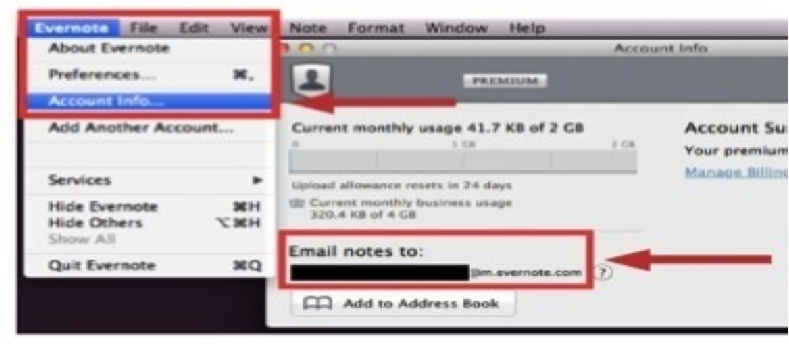
 On a laptop or desktop version of the Evernote app, follow Evernote > Account Info > Email Notes To for finding the email address assigned to your specific database. Likewise, on the iPad or iPhone app, tap the elephant head image to get back to your main menu; from there, tap the gear image in the top, left-hand corner, follow General > Evernote Email Address, and you will see the email address assigned to your specific database. Finally, on an Android version of the Evernote app, tap the image of three dots stacked vertically to follow General > Evernote Email Address, and you'll find the email address assigned to your specific database.
Whatever you see as that email address assigned to your Evernote database is designed to be complicated and difficult to remember so others can't start sending content into your Evernote account. I find it's not realistic to think I'll just remember what that email address is; therefore, I recommend saving your email address as a contact in your address book. Often, I use Evernote as the first name and Upload as the last name. Once that information is saved as a contact, when I'm sending an email to my Evernote database, in the To line, I start typing Evernote Upload, and the address populates for me. It's such an easier way to quickly add content to my Evernote database!

When you started your Evernote account, the first notebook given to you was labeled as your "default" notebook. As content is created in alternative manners, like emailing or scanning into Evernote, that content will automatically go to your default notebook. While you can always go into a different notebook's settings to change that into your default, overriding the original notebook's settings, you can alternatively just rename your original notebook to make the default easier to find. I recommend renaming your default notebook as your Inbox, just like the Inbox in your email management tool. Then, you can process newly received content from your Inbox just like you process emails from that Inbox location.
On the other hand, if you'd rather the content you are emailing into your Evernote database bypass that default notebook, doing directly to a desired destination, you can utilize the email's subject line to aid organization... Add @ before an existing notebook name to add the content as a note in that specific notebook. Add # before an existing tag to add that tag to the note being created by the content you're emailing. Insert a reminder as !YYYY/MM/DD.

Regardless of whether you are adding typed text, video and audio files, documents, checklists or photos, emailing into your database is a technique to simplify the process. For more, view my related video by clicking here, and, then, let me know your thoughts.
Do you use email to add content into your database? What successes have you had? Which of the aforementioned shortcuts will you implement with your Evernote use?