Brought To You By Emily Parks
Productivity Consultant at Organize For Success, LLC...
Helping You Make Every Minute Matter!


Showing posts with label remember everything. Show all posts

Sunday, January 31, 2016

Document Everything

Our ever-growing to-do lists, reference materials, resources, process outlines, checklists, websites to visit, shopping lists and much, much more... The amount of information we need to remember is constantly getting bigger and bigger. How can we possibly remember it all, let alone act upon any of it?!?

Where do you keep lists & references?
As we attempt to keep track of everything, it is important to remember that our brains are meant for strategic and creative thinking, not remembering things. Therefore, get it out of your head and document everything. Whether you choose a paper or electronic solution, do a data dump and collect all the information in a solution other than your brain.

While you probably use a calendar for dates to remember, an address book for contacts' information and a task management solution for your must-do items, where do you cull together everything else that is overflowing your brain? Do you prefer a paper notebook, a mobile app or something accessible everywhere?

I prefer to document everything in Evernote as it empowers easy reference while moving it all from to-do to done. Evernote gives me one username and password to access all information synced across my devices (smartphone, tablet, laptop, desktop as well as accessible via the Internet), it has unbelievable search capabilities to find exactly what I need when I need it, it allows for uploading an extensive list of different content types in various different ways, and it empowers me to easily share content with others to boost collaboration. Whether I'm retaining typed text, web clippings, photos of handwritten notes, checklists, audio or video recordings, bills from my service providers or documents, I can easily add those to my Evernote database; plus, when adding new content, there are so many ways to accomplish it: manually, scanning, IFTTT, emailing, FileThis and many more options.

As an Evernote Business Certified Consultant, I often post about ways to implement Evernote for your greater success, how you can utilize Evernote to boost productivity and ways Evernote will help alleviate your stress as you achieve harmony through work-life integration. To find these many helpful hacks and tidbits, simply search Evernote in the top, left-hand corner of this blog.

What tool do you use to remember everything? Your brain or an external place for dumping out all that information? Have you tried Evernote for culling it all together?

Friday, March 27, 2015

Tactics to Quickly Find What's Needed in Evernote

Whether you are seeking your own words, images, documents, checklists or content culled from elsewhere, Evernote's powerful search and discovery features make it easy to quickly find what you need when you need it, no matter from where you are seeking it. How would you like to stop wasting time, searching for what you "know" you have?!? Well, look no further!

Anytime you enter text in the Search field of your Evernote account, it searches all the content in your notes' titles, your notes' bodies, notebook names, tags you've used and content in your URLs for notes in your database, including text in photos that has been processed by Optical Character Recognition; plus, in Business or Premium, you can search text inside attachments, PDFs and spreadsheets. Yet, Evernote's search capabilities go well beyond a simple keyword search option.


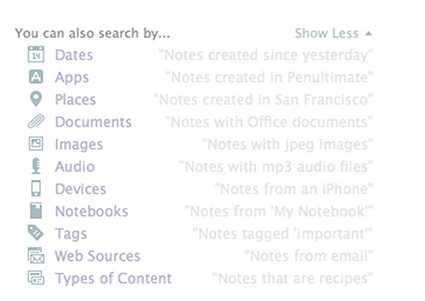
With Descriptive Search, those using Evernote on a Mac can use plain language to describe what is being sought. You can search by location you visited on a specific trip, by dates you know you were doing whatever is being sought, by type of device you used to upload the information and more. Click here for a video overview of the Descriptive Search functionality.

Still, within that same search field, Evernote offers codes or equations you can use to focus in on certain aspects of the content for which you are searching. Here are some examples:
  • created:20150115 finds notes created on January 15, 2015
  • updated:20150327 finds notes updated on March 27, 2015
  • intitle:"coffee" finds notes with coffee in their titles
  • resource:image/* searches for notes that include images
  • notebook:"Receipts" finds notes in the Receipts notebook
  • tag:"Mobile" finds notes tagged with Mobile
  • any:"New York" searches for notes that have New OR York in them, unlike how typing New York on its own in the search box will pull up notes that have both New AND York in them
  • todo:true finds notes with a checkbox that is checked
  • todo:false finds notes that contain an unchecked checkbox
  • todo:* searches for all notes that contain any checkbox at all
  • source:mobile finds all notes created on a mobile device

Many of my clients extend the power of Evernote for quickly finding what's needed via the Atlas and Shortcuts. By clicking the word Atlas in your Evernote account, you see a map and can locate any note based off the location in which it was added to your database. Likewise, under word Shortcut, you can access any note or notebook you've added to the shortlist of which content you access most frequently and, therefore, want most easily accessible. It is quite simple to add content to your Shortcuts by simply dragging a note or notebook atop the Shortcuts name and, then, dropping it into that section; however, I highly encourage you to keep your list of Shortcut content short so it doesn't become cumbersome to scroll through these options.

Above all else, though, I think Evernote's recent additions of Context and Augmented Intelligence empower me to most easily find whatever I might need quickly. If you are using Evernote Premium, it is with Context that you are given related notes from you own account, people from your LinkedIn network related to that note's content and relevant content for free from trusted news sources, like The Wall Street Journal, Fast Company, Inc Magazine, Pando Daily, CrunchBase, TechCrunch, Forbes and Lifehacker. On Evernote Business, the Context functionality adds related notes from team members, others in your company who many know more about the topic at hand and content from Factiva's web content. Context dramatically extends my ability to get work done within my Evernote workspace. Further, via Augmented Intelligence, my Evernote database is incorporating what it learns from how I use the tool to better provide me with what content it determines would be helpful, and it is quite fascinating. For example, if I've been adding content to specific notebooks, those notebooks will appear atop my list of notebook options when adding new notes on the go.

How do you find what you need quickly in your Evernote database? Do you utilize any of these tactics or are there any you'll be incorporating in your daily work habits?

Monday, March 9, 2015

Tips to Utilize Email for Adding & Organizing in Evernote

Last week, I shared with you the many forms of information that can be added in multiple ways to your Evernote database. In that list, I included "send to your Evernote account's email address", but that might've led to even more questions. Let's dive a little deeper into this functionality.

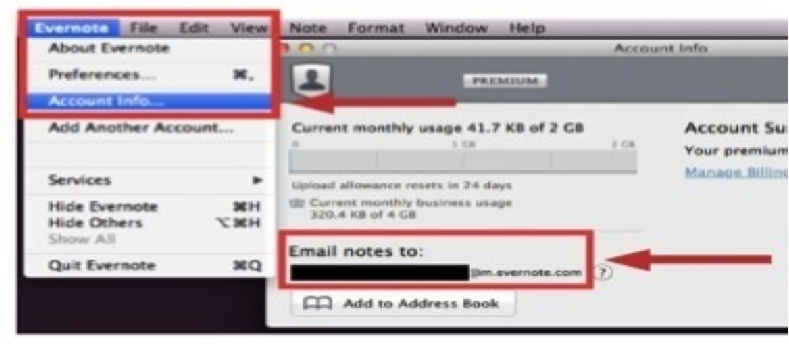
On a laptop or desktop version of the Evernote app, follow Evernote > Account Info > Email Notes To for finding the email address assigned to your specific database. Likewise, on the iPad or iPhone app, tap the elephant head image to get back to your main menu; from there, tap the gear image in the top, left-hand corner, follow General > Evernote Email Address, and you will see the email address assigned to your specific database. Finally, on an Android version of the Evernote app, tap the image of three dots stacked vertically to follow General > Evernote Email Address, and you'll find the email address assigned to your specific database.

Whatever you see as that email address assigned to your Evernote database is designed to be complicated and difficult to remember so others can't start sending content into your Evernote account. I find it's not realistic to think I'll just remember what that email address is; therefore, I recommend saving your email address as a contact in your address book. Often, I use Evernote as the first name and Upload as the last name. Once that information is saved as a contact, when I'm sending an email to my Evernote database, in the To line, I start typing Evernote Upload, and the address populates for me. It's such an easier way to quickly add content to my Evernote database!

When you started your Evernote account, the first notebook given to you was labeled as your "default" notebook. As content is created in alternative manners, like emailing or scanning into Evernote, that content will automatically go to your default notebook. While you can always go into a different notebook's settings to change that into your default, overriding the original notebook's settings, you can alternatively just rename your original notebook to make the default easier to find. I recommend renaming your default notebook as your Inbox, just like the Inbox in your email management tool. Then, you can process newly received content from your Inbox just like you process emails from that Inbox location.

On the other hand, if you'd rather the content you are emailing into your Evernote database bypass that default notebook, doing directly to a desired destination, you can utilize the email's subject line to aid organization... Add @ before an existing notebook name to add the content as a note in that specific notebook. Add # before an existing tag to add that tag to the note being created by the content you're emailing. Insert a reminder as !YYYY/MM/DD. 

If you choose to utilize the subject line of an email you are sending into your Evernote database, there are a couple requirements to remember. First, the left-to-right order of your subject line must be note name, reminder, notebook name and, then, tags. While you do not have to include each one of those elements, Evernote will understand the information you are sending only if you have the information in that specific order. Second, any notebook or tag to be added via an email subject line must already exist in your database; you cannot use a subject line to create a new notebook or a new tag. Likewise, if the notebook name or tag doesn't match the exact spelling of what already exists, the system won't recognize it as a match so it won't work.

Regardless of whether you are adding typed text, video and audio files, documents, checklists or photos, emailing into your database is a technique to simplify the process. For more, view my related video by clicking here, and, then, let me know your thoughts.

Do you use email to add content into your database? What successes have you had? Which of the aforementioned shortcuts will you implement with your Evernote use?

Monday, March 2, 2015

Add Many Forms of Info in Multiple Ways to Evernote

One of the features offered by Evernote that makes it so beneficial for users' writing, collecting, finding and presenting all their lives' work is the ability to upload different forms of information in multiple ways.

Beyond the ability to capture typed text, Evernote's suite of productivity apps opens your options. It allows photos, handwritten notes, audio & video files, web clippings and more to be added to your database. The value of having all such particulars in one place is so powerful, saving you time in finding what you need by checking only one source for the necessary information.

Once you've created the username and password for your database, you can manually create any note, whether on a laptop, desktop, smartphone, tablet or web browser. However, I highly recommend you not limit yourself to adding content in that one method... There are so many other options!

Alternate ways to create content in your Evernote database include the following:
- Use web clipper installed in your Chrome, Firefox, Internet Explorer or Safari web browser
- Clip content from the clipper atop your Mac homescreen
- Scan from your Fujitsu ScanSnap device or the Scannable app
- Automate creation with If This Then That, Zapier or Podbox
- Skitch or Clearly apps
- Utilize FileThis for bringing in PDFs of your monthly bills
- Send to your Evernote account's email address
- And much more!

For a video on what contents I like to include in my Evernote database and how I normally add that content, please click here. Meanwhile, I'd love your feedback in the comments... What sort of information do you like adding to your Evernote database? Using what method do you prefer to add that content and create new notes?

Thursday, December 4, 2014

This Evernote Business Certified Consultant Can Help

Recently, I completed a comprehensive and rigorous training program to be selected as an Evernote Business Certified Consultant. This is a new certification that Evernote created so companies and teams can find experts in their own backyards to help them best implement Evernote Business. Using my certification, I can assist you and your team in increasing your productivity, passing along the latest updates as well as what's happening with Evernote and what best practices might best aid your specific workflows.

Technology can be overwhelming, but, with a tool like Evernote, one can easily increase their productivity and create a clutter-free environment. Since 2009, I've offered Evernote workshops, adding Evernote courses in North Carolina State University's Technology Training Solutions unit just this past fall. By becoming an Evernote Business Certified Consultant, I've exhibited expertise in helping professionals implement this suite of tools across their businesses, expanding on the training I provide as to how Evernote can help individuals as well as teams increase their productivity.

What is Evernote?
Evernote is a secure suite of apps that allows users to capture typed text, video and audio files, checklists, web clippings as well as photos, including photos of handwritten notes. In this database, content can be created by the user or culled in from other sources. Plus, all elements of the database are easy to sort, edit, search and share. Even writing within imagery, whether handwritten or typed, can be searched! Evernote's ubiquity allows for accessing the same information everywhere at the same time as all data syncs "real time" across linked devices; plus, its sharing boosts collaboration.

Beyond the Free, Premium and Business options, Evernote offers plenty of complementary options to enhance the functionality of this suite of apps, including Skitch, Scannable, Web Clipper, Penultimate and Evernote Food, not to mention the various market offerings, like Triangle Commuter Bag, Jot Script Stylus, ScanSnap Scanner, Pfeiffer platforms and Moleskin notebooks.

How Can Evernote Benefit You?
The ways in which you can use Evernote are limitless. In my Evernote Advanced course, I go beyond the basics to cover all the following ways in which you can use Evernote to boost productivity while aiding your peace of mind as well as helping your collaboration and communication abilities:
- task and project management options
- documenting and sharing workflow processes
- writing more proficiently, especially as a word processor
- hold better meetings
- options to enhance contact management
- be better prepared for emergencies
- go paperLESS and create an online file cabinet
- streamline and better enjoy traveling
- assist gift-giving and recognition programs
- track invoices and compile reimbursements to manage money
- enhance work with clients, especially record-keeping and sharing information
- photo storage and sharing options
- and much, much more...

For everything you'll do, Evernote is the workspace in which you can best get it done... Write, collect, find and present on every device you use everyday.

What is Unique About Evernote Business?
If you compare the Premium option to the basic, Free option, you'll see the additions of four times larger note capacity, the ability to annotate PDFs instead of just photos, presentation mode, context provided for your current work via related notes in your database as well as related news in the News Corp family, ability to search text in uploaded documents and being able to work with notes offline; still, there are specific benefits offered in Evernote Business that can't be found anywhere else.

In addition to being the central hub for your employees to work together, communicating and collaborating for better results, it's also the one main spot to keep, share and find companywide documents alongside your personal contents. Within Evernote Business, all team members can find their own information as well as the business' information quickly and easily whenever needed.

- Secure, flexible sharing so new hires can easily be given access to company information while that access can be quickly cut off should said team member depart. The business owner can rest assured that information is secure while those collaborating never fear anything being lost.

- There is plenty of room for projects to grow as the monthly upload for Evernote Business is greater than that for the Free and Premium versions. Each user receives 2GB of monthly uploads for their personal notebooks and 2GB of monthly uploads for their business notebooks, totaling 4GB a month.

- Access to everyone's knowledge boosts team collaboration, communication and output. Team members can speak with one another and share details real time via Work Chat. Plus, as team members create, edit or view content, Evernote Business highlights related content in the companywide database as well as in News Corp content or on LinkedIn; the team becomes smarter!

How Can This Evernote Business Certified Consultant Help You?
I can help you and your team determine which Evernote option is best for your unique needs; then, together, we create workflows and systems within the Evernote suite of apps that empower you to take advantage of all the features and benefits provided within this robust productivity tool. Via this partnership, you are able to successfully deploy implementation of Evernote, learning best practices to make your adoption of this tool as seamless as possible. Plus, with ongoing training, support and maintenance systems, you are able to make adjustments before every getting too far off course.

With your own consultant to help get Evernote Business up and running quickly, you achieve improved productivity more quickly while establishing habits to make that success last longer.

Do you and your business currently use Evernote Business? Why or why not? How could you envision this tool better enhancing your productivity so you reach even loftier goals?

Thursday, September 5, 2013

Top 15 Features Offered by Evernote for Adding More "Wow!" to Your Life

So you've heard about this amazing tool to help you "remember everything", but you're simply not sure how it could really impact your life? Well, there are a plethora of features that make using Evernote truly awesome for entrepreneurs, C-level executives, busy professionals, small business managers and the like. Here are just a few examples of its amazing features:

1. While the most basic note in your Evernote database will consist merely of only typed text, each note can be much more complex, having options for including stored documents, recorded audio or video, captured photographs, web clippings and tasks with reminders. Solely your creativity can limit your options for notes to be included in your database.

2. Evernote users can create an unlimited number of notebooks in which to organize their notes, containing an unlimited number of notes in each notebook. Then, notebooks can be combined into what's known as stacked notebooks, providing limitless options for organizing all of one's saved content.

3. Tags allow one more level of filtering to find exactly what you need when you need that specific information. While no note requires a tag, such categories can be helpful when grouping notes from different notebooks or if you'll be searching for a note by a term not included in that note's contents.


4. Speaking of searching for any given note, it is Evernote's search capabilities that truly separate this tool from its competition. The search feature combs through not only notes' titles and the notebooks' names in which those notes are stored, but it also seeks a match in all typed or photographed text in each note's body as well as in any associated tags or URLs from which content was clipped.

5. Sharing notebooks supports collaboration as users can manage projects with team members in different places or communicate information with clients while not working in a face-to-face or side-by-side scenario.

6. Likewise, users are able to share individual notes via a link on Facebook, a link on Twitter, in an email or saved as a URL copied to a computer's clipboard.

7. Evernote offers a multitude of methods for creating notes... Every account is assigned its own email address, and each email sent to it creates a new note. Content can be clipped from various different web browsers as each clipping creates a new note. And content tweeted to @myEN subsequently creates a note, too.

8. As one's database grows, the convenience of easily editing notes' content allows each user's Evernote account to evolve with that individual's needs.

9. To enhance the ease of editing, Evernote added the Skitch feature so users can add annotations to any notes that contain images, which includes options for arrows, stamps, text, shape overlays, highlighting and more.

10. Furthermore, users are able to merge social media connections and related notes based off any interactions with those individuals in scans of business cards or manually uploaded contacts via Evernote's acquisition of Hello.

11. As reminders can be attached to each note, including an alert based off any specified date and time, Evernote allows for task and project management.

12. Evernote's ubiquity empowers users with the capacity of accessing the same information everywhere at the same time as it syncs "real time" between all devices on which the user has included the tool.

13. Via its "trunk", Evernote integrates with TONS of different partners.

14. Based off its desire to be "the permanent, trusted and ubiquitous place for all memories", Evernote holds fast to three rules: your date is yours, your data is protected and your data is portable.

15. While there are enhancements available for a small fee in the Premium version or for enterprise users in the Business version, most functionality offered by Evernote is included for free, which might be the best feature of all.

Want to learn more, including step-by-step instructions on setting up and best utilizing your account? You're in luck... A new offering of Emily's "Using Evernote to Remember Everything - Evernote Basics" workshop has been added at 3-5pm TOMORROW, and you can learn more or register now at http://evernotebasics.eventbrite.com. We look forward to seeing you there!